

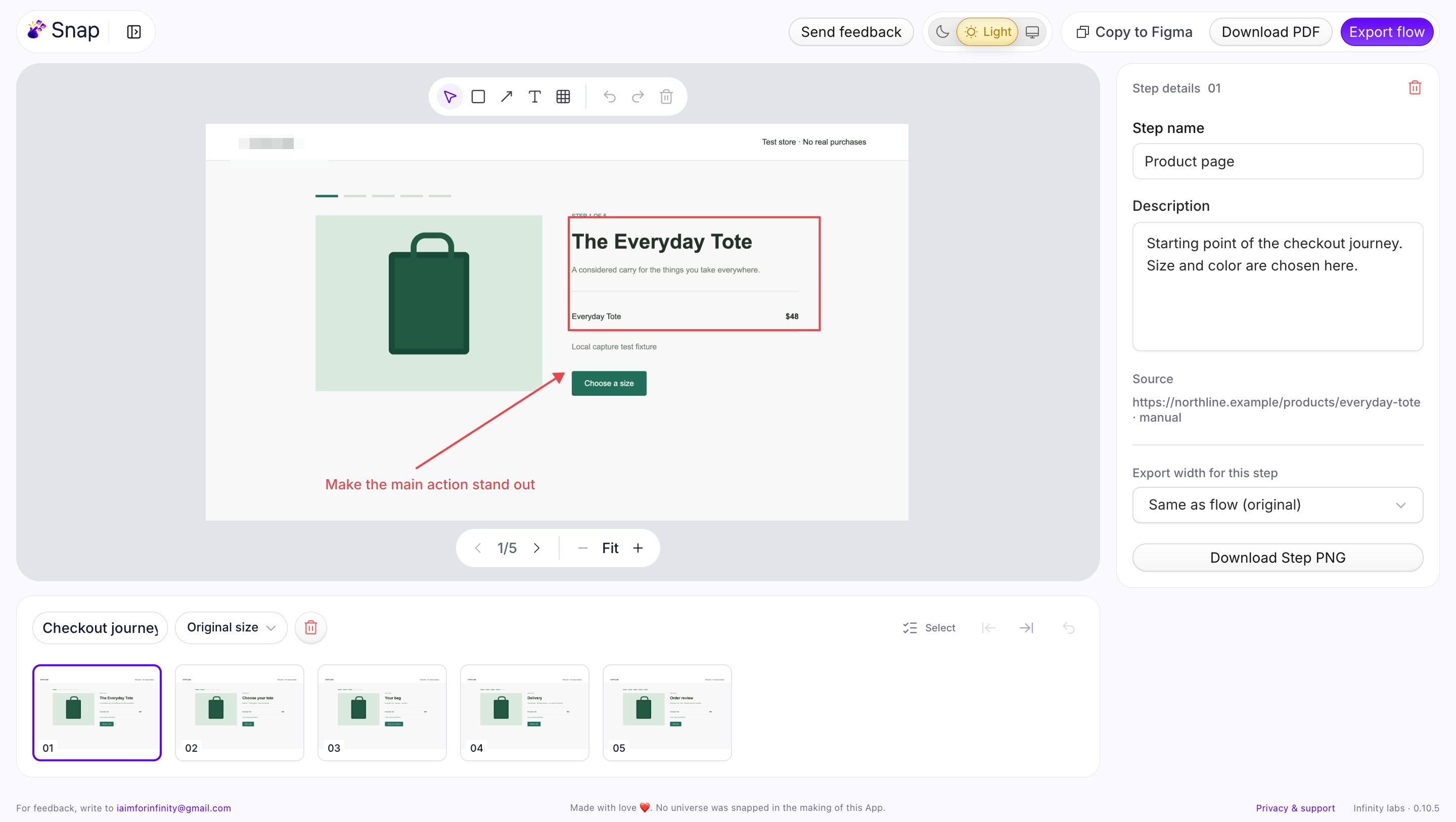
A single screenshot shows a screen. A product flow explains how someone got there, what they did, and what happened next. That context matters when you are reviewing onboarding, comparing checkout experiences, or handing an existing interaction to a designer.
Snap is a Chrome extension for capturing those moments by hand. You choose each screenshot, keep the sequence together, and add the explanation a reviewer needs. Here is a practical way to document a product flow without collecting a folder of disconnected images.
Start with one task and one outcome
Choose a specific journey, such as “Create an account and reach the dashboard” or “Apply a discount and complete checkout.” Record the starting conditions in your notes: signed in or signed out, account type, and any data needed to follow the journey.
Keep alternate paths separate when they tell a different story. A successful checkout and a rejected payment deserve their own flows. That makes the sequence easier to review and prevents people from mistaking an error state for the normal path.
Capture the moments that change the story
Open Snap, name the journey, and select Start Snapping. Move through the task in Chrome and capture each meaningful state. Snap does not automatically record clicks or video, so take a screenshot whenever the interface reveals something your reviewer needs to understand.
- Capture the starting screen and its primary action.
- Include forms, decisions, and validation messages that affect the next step.
- Capture the final confirmation so the outcome is clear.
Use visible-area capture for a screen-level view, selected-area capture for a focused detail, or full-page capture when the surrounding page matters. Keep enough context to orient the reader. A tightly cropped button can be harder to understand than the form around it.
Turn screenshots into a reviewable narrative
In the editor, put the steps in order and give each one a descriptive title. “Choose a delivery method” tells the reader more than “Screenshot 4.” Add a short note describing the action and its result.
Use rectangles and arrows to identify the relevant control. Add text where a design observation needs explanation, but avoid covering the interface you want reviewed. Separate what you observed from what you propose: “The error appears above the form” is an observation; “Move the error next to the field” is a recommendation.
Example: a checkout review
A useful checkout flow might contain five steps: cart summary, delivery details, delivery method, payment, and confirmation. At the delivery step, highlight when the shipping cost first appears. At payment, note whether the order total remains visible. At confirmation, capture the next action offered to the customer.
Those details give a review meeting specific questions to answer. Can someone understand the total before paying? Can they edit a previous choice? Does the final screen explain what happens next? The screenshots provide evidence for the discussion.
Choose the right handoff
Copy the flow into Figma when the discussion belongs beside design work. Export a PDF for a sequential walkthrough, or use PNGs and a numbered ZIP when a teammate needs individual images. Snap keeps capture and editing local; you decide where to share the exported files.
Before sharing, review screenshots, notes, and source URLs for information that should not travel with the document. Snap can pixelate selected areas in exports, while the original captures remain unchanged in the editor.
If the journey exposes a defect, use the same sequence to build a screenshot bug report. If you are teaching someone how to complete it, turn the flow into a step-by-step PDF guide.
Put your next flow together with Snap
Capture the moments you choose in Chrome, annotate the steps, and export the story. No account needed.
Add Snap to Chrome