

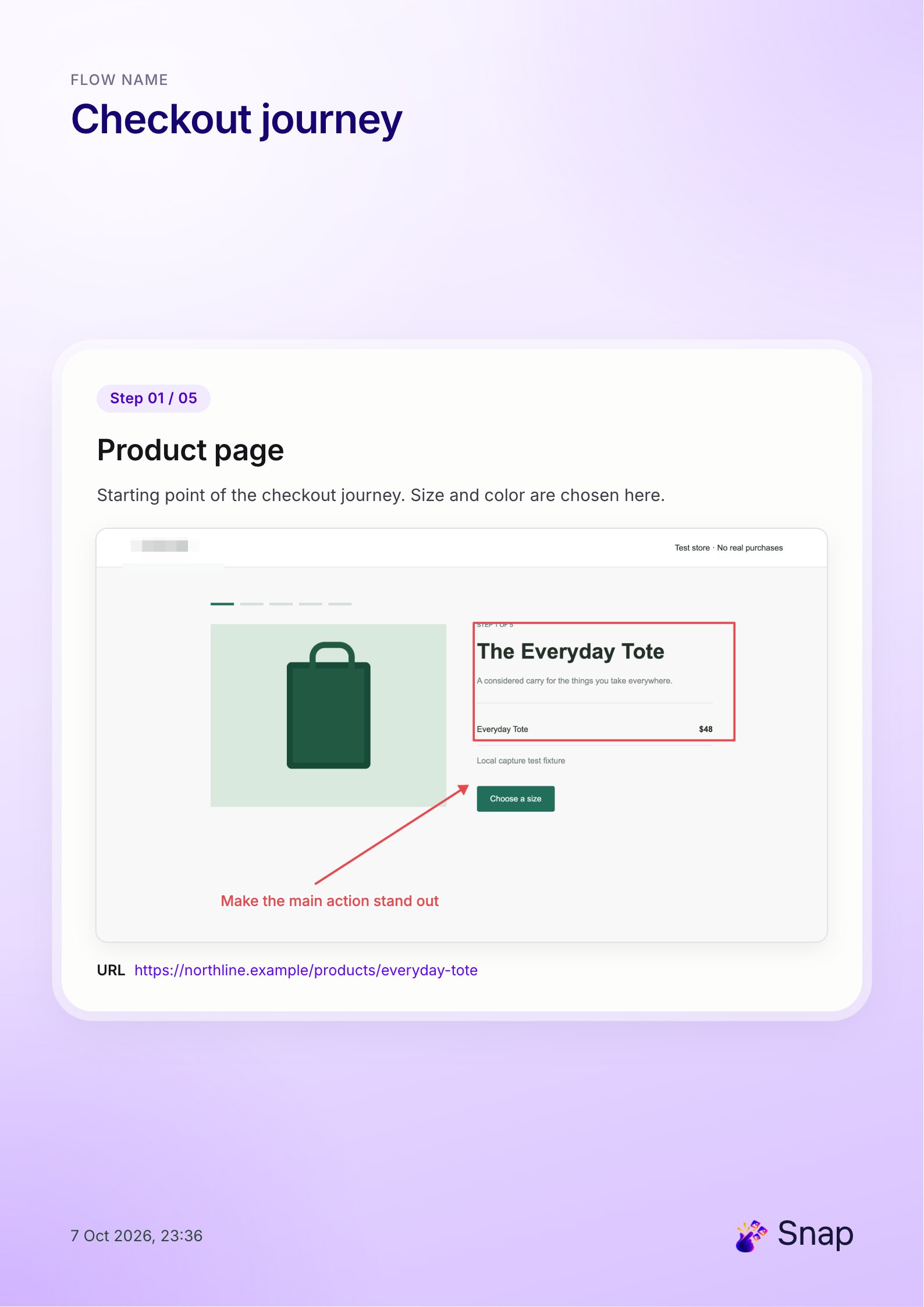
When someone asks how to complete a task in a web application, a short visual guide can make the answer easier to follow. Each screenshot gives them a reference point, and each instruction tells them what to do next. This works well for customer support, employee onboarding, and repeatable internal processes.
Snap lets you capture a workflow in Chrome, organize the steps, add notes and annotations, and export the sequence as a PDF. The result is a document you can share through the tools your team already uses.
Define the reader and the finish line
Write down who the guide is for and what they should be able to finish. “Invite a teammate to a workspace” is a clearer topic than “Workspace settings.” Include prerequisites such as being signed in or having access to the relevant settings.
Keep each guide focused on one task. If administrators and regular members see different controls, state which role the guide assumes. A reader should not have to guess whether a missing button is a mistake or a permission difference.
Walk through the task once, then capture it
First check that the process works from beginning to end. Then open Snap, give the flow a descriptive name, and start snapping. Capture the starting screen, the meaningful intermediate states, and the final confirmation.
Choose the capture mode to match the instruction. A visible-area screenshot helps someone recognize the screen. A selected area can make a small setting readable. Use full-page capture when the overall page structure matters, but remember that a long page scaled into a PDF can make its text small.
Write one clear action per step
In the editor, reorder screenshots and rename each step around an action: “Open workspace settings,” “Enter the teammate’s email,” and “Send the invitation.” Add notes that explain what to select and what should happen afterward.
Use the labels that appear in the interface. “Select Invite” is easier to follow than “Click the purple button on the right,” particularly if the window size or theme changes. Explain unfamiliar terms the first time you use them.
Use an arrow or rectangle to point to the relevant control. Keep annotations sparse enough that the reader can still recognize the application. If a step requires several unrelated actions, split it into smaller steps.
Example: inviting a teammate
- Open the workspace: Show the current workspace name so the reader can confirm the destination.
- Open member settings: Highlight the navigation item used to manage access.
- Enter invitation details: Use a demo email address and explain the role choice.
- Review and send: Show the action that sends the invitation.
- Check the result: Capture the pending invitation so the reader knows the task succeeded.
This structure gives the guide a visible finish line. If the expected confirmation does not appear, the reader has a precise point to mention when asking for help.
Export and check the PDF
Snap’s PDF export puts one step on each page, with the flow name, step number, title, and notes. Annotations and redactions are included. Each page also retains its source URL as a link, and the footer includes the export date and time.
Open the exported file and read it as someone seeing the workflow for the first time. Check the screenshot size, instruction order, and final outcome. Inspect source URLs and written notes alongside the images before sharing. Use demo data where possible; redacting a screenshot does not remove sensitive text from a note or URL.
Keep the guide useful after the first share
Share the PDF in your support conversation or documentation space, then update it when the interface changes. Snap stores flows locally in your Chrome profile, so export important work before removing the extension or clearing browser data. The exported document is a snapshot of the workflow at that time.
For design discussions, use a product-flow walkthrough. When a step fails, capture the unexpected state and create a bug report with screenshot evidence.
Put your next flow together with Snap
Capture the moments you choose in Chrome, annotate the steps, and export the story. No account needed.
Add Snap to Chrome