

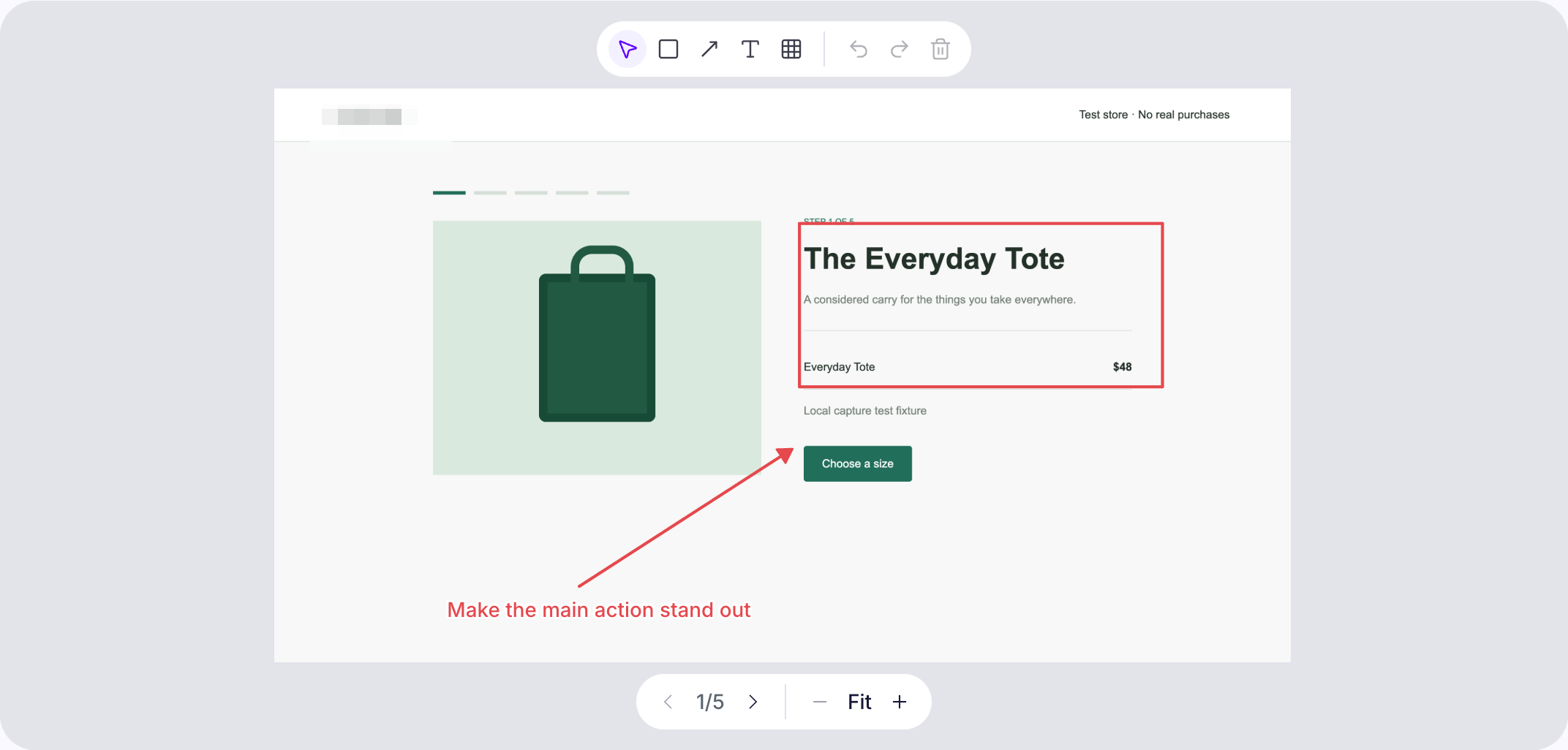
“Checkout is broken” leaves a developer with several unanswered questions. Which screen failed? What happened immediately before it? What should have happened instead? A useful bug report answers those questions with a short reproduction sequence and evidence.
Snap helps you capture that evidence as an ordered screenshot flow in Chrome. It is useful for visible interface problems: incorrect totals, missing controls, unexpected validation, and layouts that change after an action. The written report still needs to explain the behavior.
Reproduce the problem deliberately
Start from a known state and repeat the smallest sequence that triggers the issue. Note the browser version, operating system, page or environment, and relevant account conditions. If the problem happens intermittently, say so rather than presenting a single occurrence as a reliable reproduction.
Use a descriptive flow name such as “Discount disappears after changing delivery method.” Open Snap and start capturing before the action that causes the problem. You want the report to show the transition from a working state to the unexpected state.
Capture before, action context, and after
A compact report often needs only a few screenshots. For the discount example, capture the order summary with the discount applied, the delivery choice that you change, and the order summary after the discount disappears.
Snap captures only when you ask. A screenshot of the resulting screen does not record the click that produced it, so describe that action in the step notes. Include exact inputs when they are safe to share and necessary to reproduce the issue.
- Before: Apply the demo discount to the cart and confirm that the total decreases.
- Action: Change the delivery method from standard to express.
- After: Capture the updated summary and identify the missing discount.
Separate expected and actual behavior
Use annotations to direct attention to the evidence. Draw a rectangle around the total or add an arrow to a missing-state message. Keep the explanation factual; a screenshot can show a changed number, but it cannot establish why the calculation changed.
Write the expected result and actual result in separate sentences. For example: “Expected: the discount remains applied when the delivery method changes. Actual: the discount row disappears and the total increases.” Include the source of the expected behavior when it comes from a requirement or agreed design.
A practical bug report checklist
- Title: Describe the action and the unexpected result.
- Environment: State the browser, operating system, and relevant test conditions.
- Preconditions: Explain the account state and setup needed.
- Steps: Number the actions in the same order as the screenshots.
- Expected and actual: Make the difference explicit.
- Frequency and impact: Say how often it happens and what task it prevents.
Snap helps organize screenshots and notes; it does not collect console logs or network traces. If the issue depends on timing, requests, or an invisible error, collect that evidence separately with the appropriate browser tools and attach it to the report.
Export evidence that is easy to inspect
Export individual PNGs for a ticket that displays images inline, a numbered ZIP for a collection of screenshots, or a PDF for a complete walkthrough. Review the exported result before attaching it so the labels are readable and the order matches your written steps.
Prefer test data. Use Snap’s redaction tool for sensitive screenshot areas, and inspect notes and source URLs as well. Redaction changes the exported image; the original capture remains in the local editor.
For broader context, link the report to a documented product flow. Once the issue is resolved, a step-by-step guide can show the intended behavior to support or onboarding teams.
Put your next flow together with Snap
Capture the moments you choose in Chrome, annotate the steps, and export the story. No account needed.
Add Snap to Chrome