

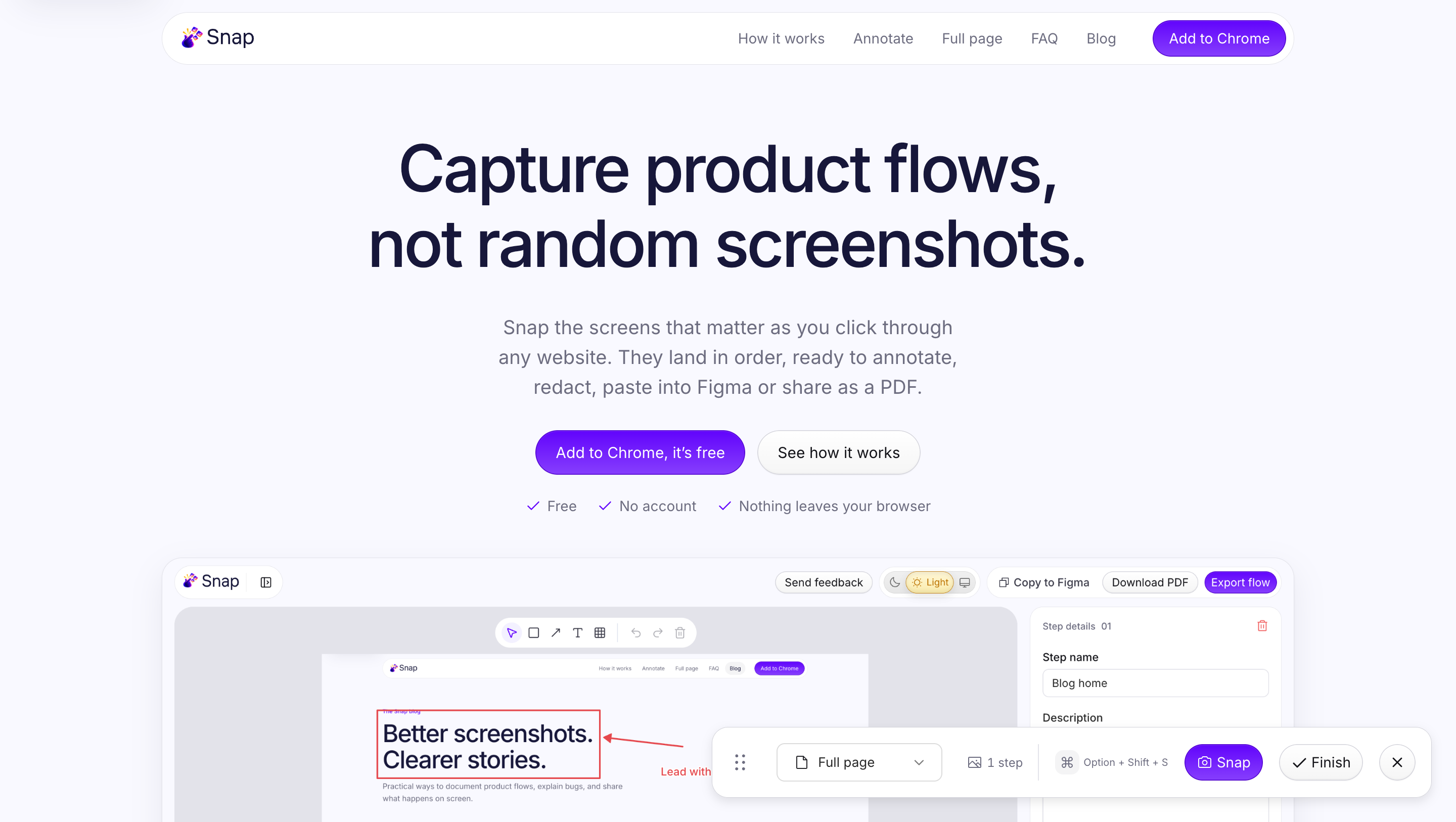
Full page screenshots
Stitch an entire page into one image, sticky headers shown once.
Read moreScreenshot annotation for Chrome
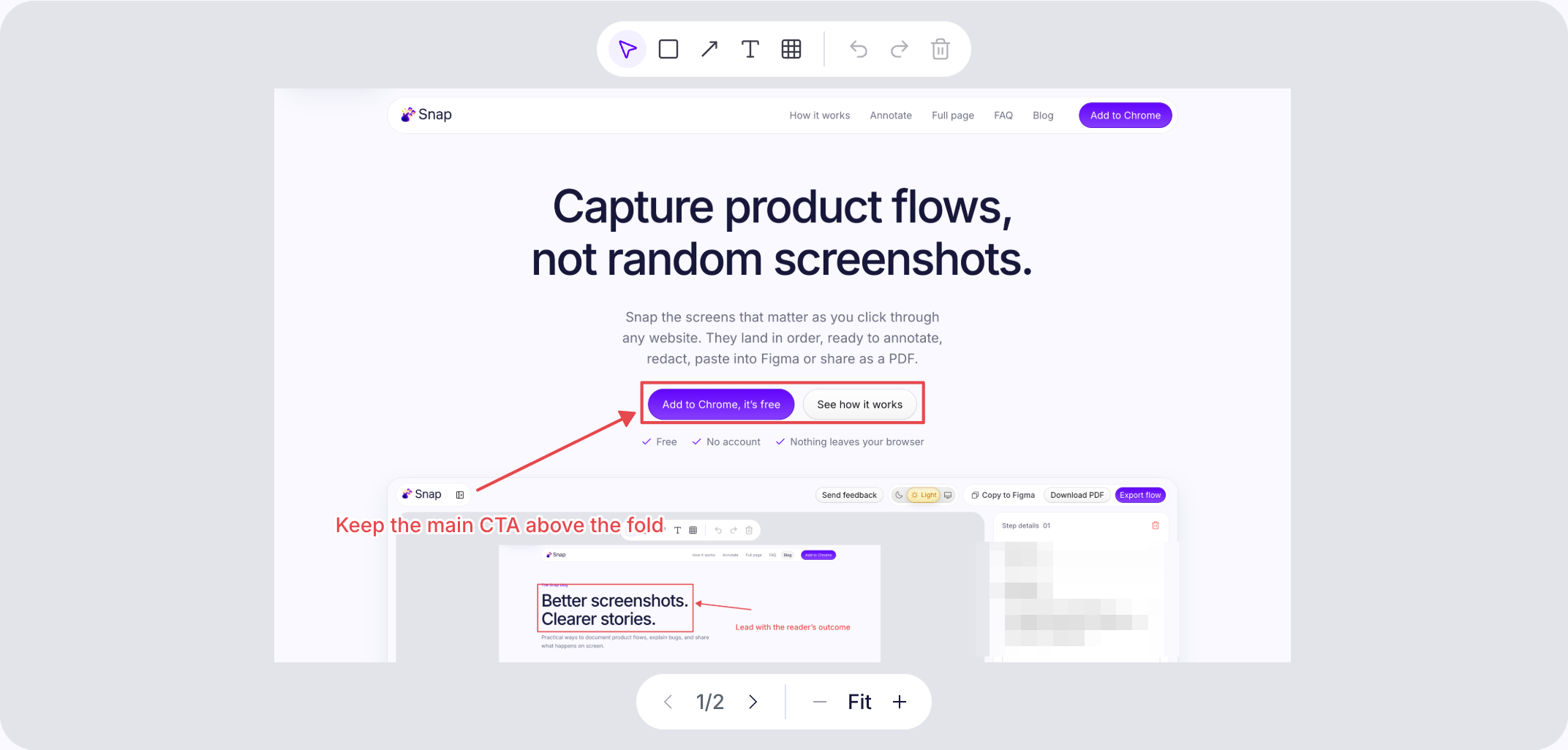
Snap a page, then call out what matters with boxes, arrows and text, and pixelate anything private. Your markup travels into every PNG, PDF and Figma export.
How to
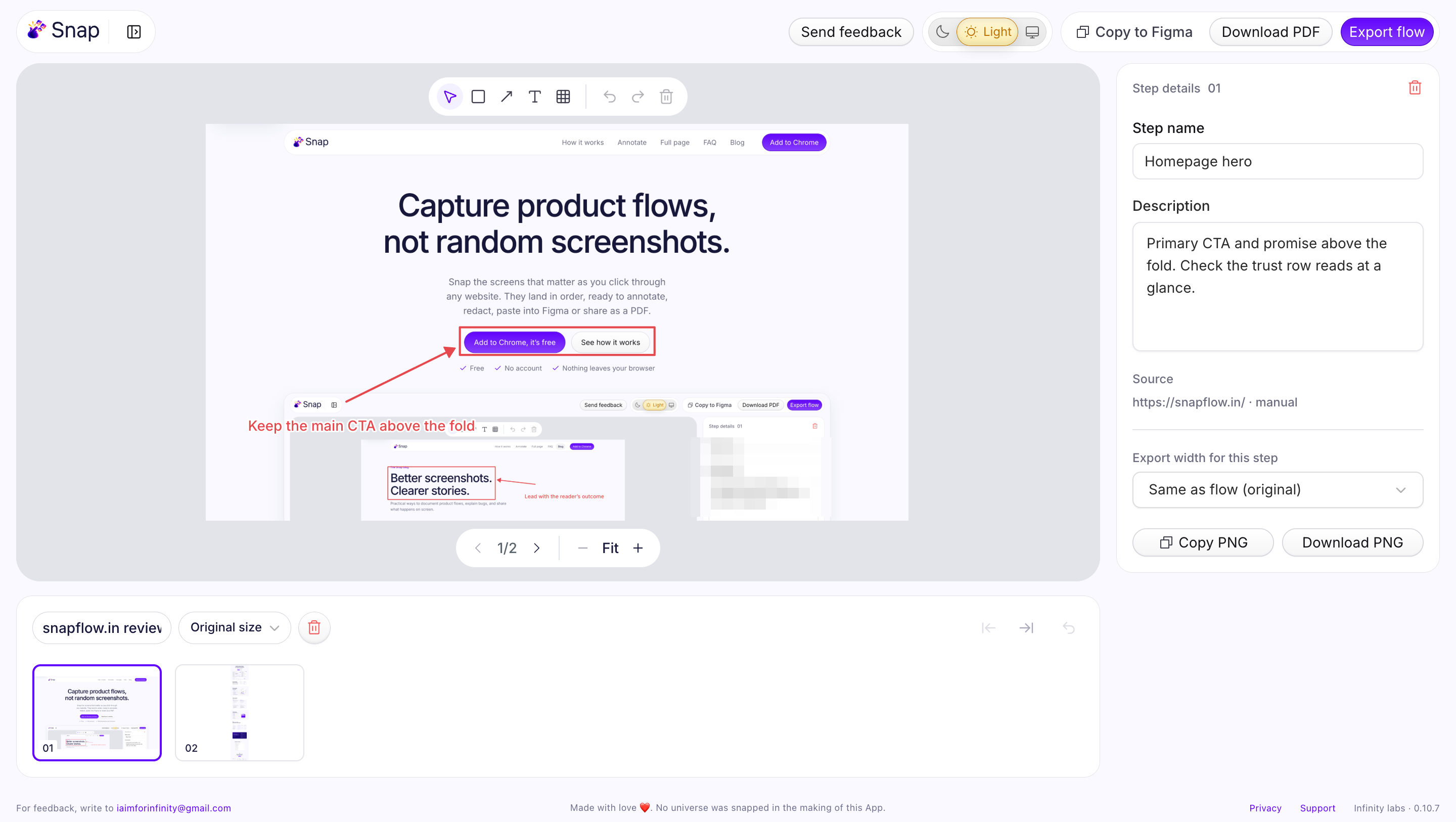
Open Snap on any website and press Snap, or ⌥⇧S. Capture the visible area, a selected region or the full page.
Press Finish. Your captures open in order in the Snap editor, ready to mark up.
Rectangle R, Arrow A, Text T and Redact B. Select and move with V, undo with ⌘Z.
Download a PNG, a ZIP or a PDF, copy a single step, or paste the whole flow into Figma. Annotations are drawn into every export.
Annotation tools
Four tools, keyboard shortcuts for each, and your original capture always kept untouched.
Use cases
Design reviews
Mark up a competitor’s onboarding or your own staging build, then paste the annotated flow into Figma.
Bug reports
Circle what broke at each step so engineering sees the problem, not just the page.
How to write a bug report with screenshot stepsHow-to guides
Number the clicks, label the fields and share a PDF your customers can follow.
How to create step-by-step PDF guidesFAQ
Install Snap, open it on the page and press Snap. Press Finish to open the editor, then use Rectangle (R), Arrow (A), Text (T) or Redact (B) to mark up the capture. Export a PNG or PDF, or paste the flow into Figma.
Yes. The Redact tool pixelates any area you draw over, and the pixelation is applied in every PNG, ZIP, PDF and Figma export. Pixelation hides details from casual viewing but is not a guarantee, so avoid capturing passwords or secrets at all.
No. Annotations are stored separately with each step, so the original capture stays untouched in the editor. You can move, edit or delete annotations at any time.
Yes. Every step in a flow can have its own boxes, arrows, text and redactions, and the whole annotated flow exports together as a PDF, a ZIP or a Figma paste.
Yes. Snap is free in the Chrome Web Store, with no account and no sign-up. Your screenshots and annotations stay in your Chrome profile.
Keep exploring
Stitch an entire page into one image, sticky headers shown once.
Read more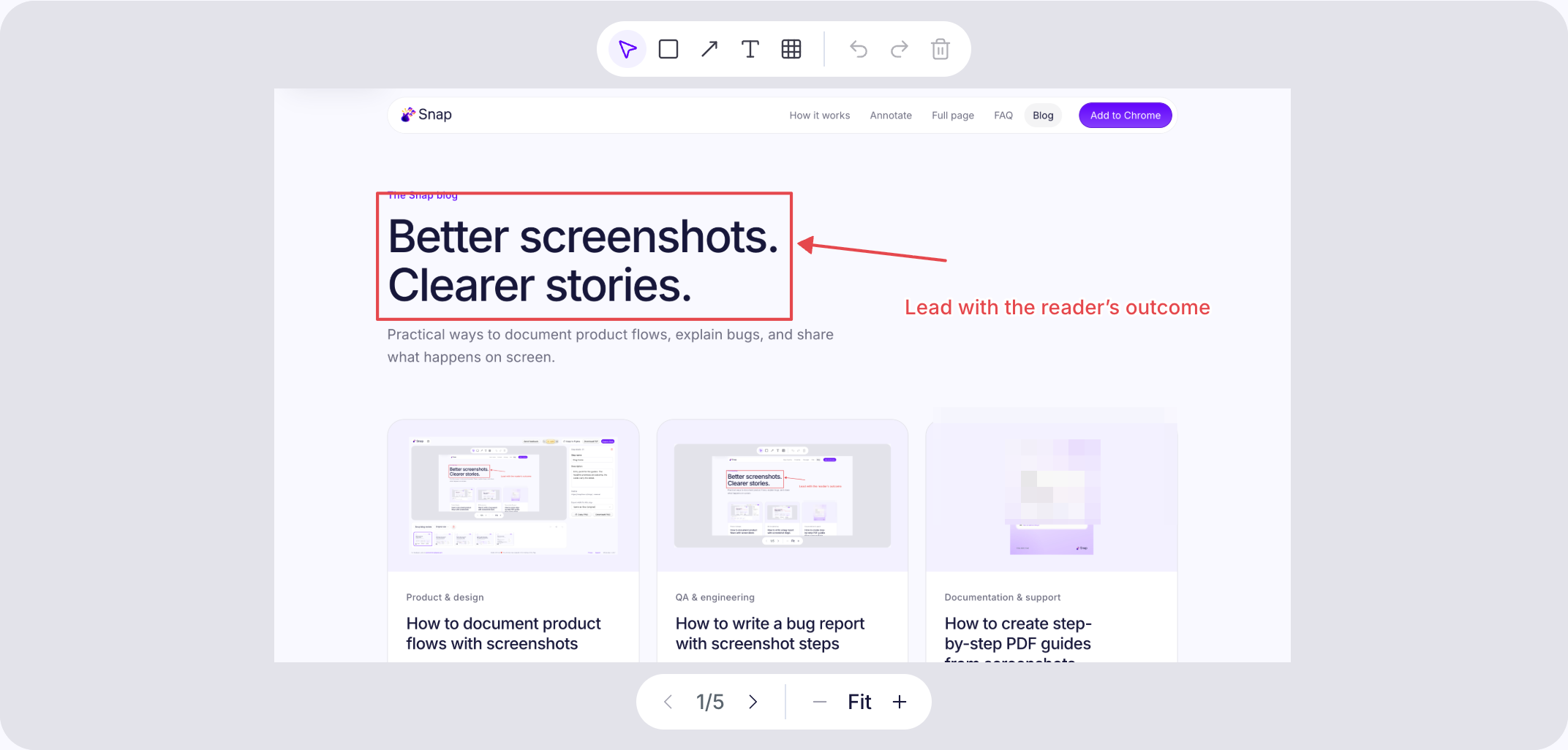
Ordered screenshots, clear reproduction steps and focused annotations.
Read more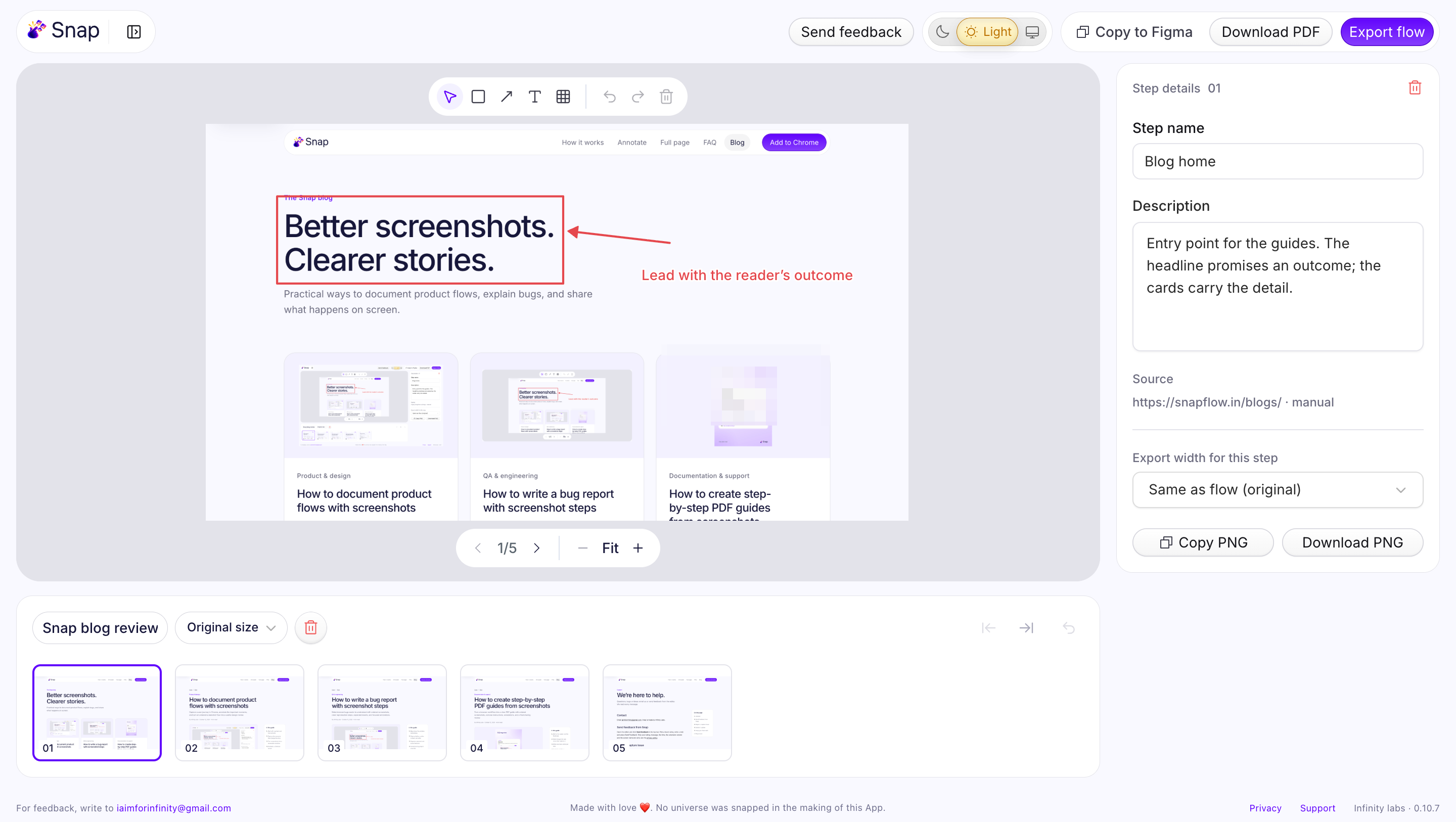
Turn a user journey into an annotated flow for design review.
Read more
Free in the Chrome Web Store. No account, nothing uploaded.