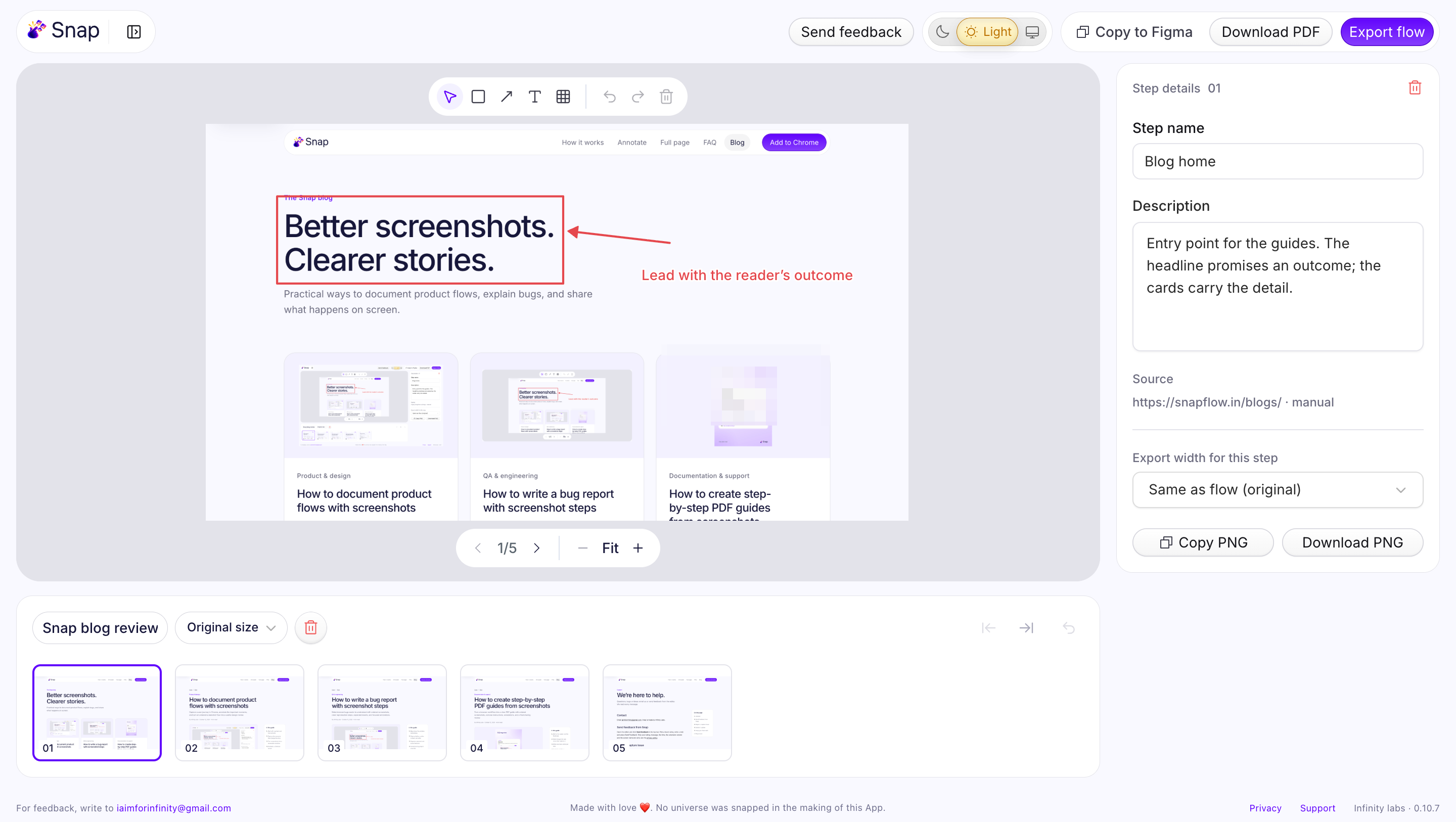
Annotate screenshots
Boxes, arrows, text and redaction, drawn into every export.
Read moreFull page screenshots for Chrome
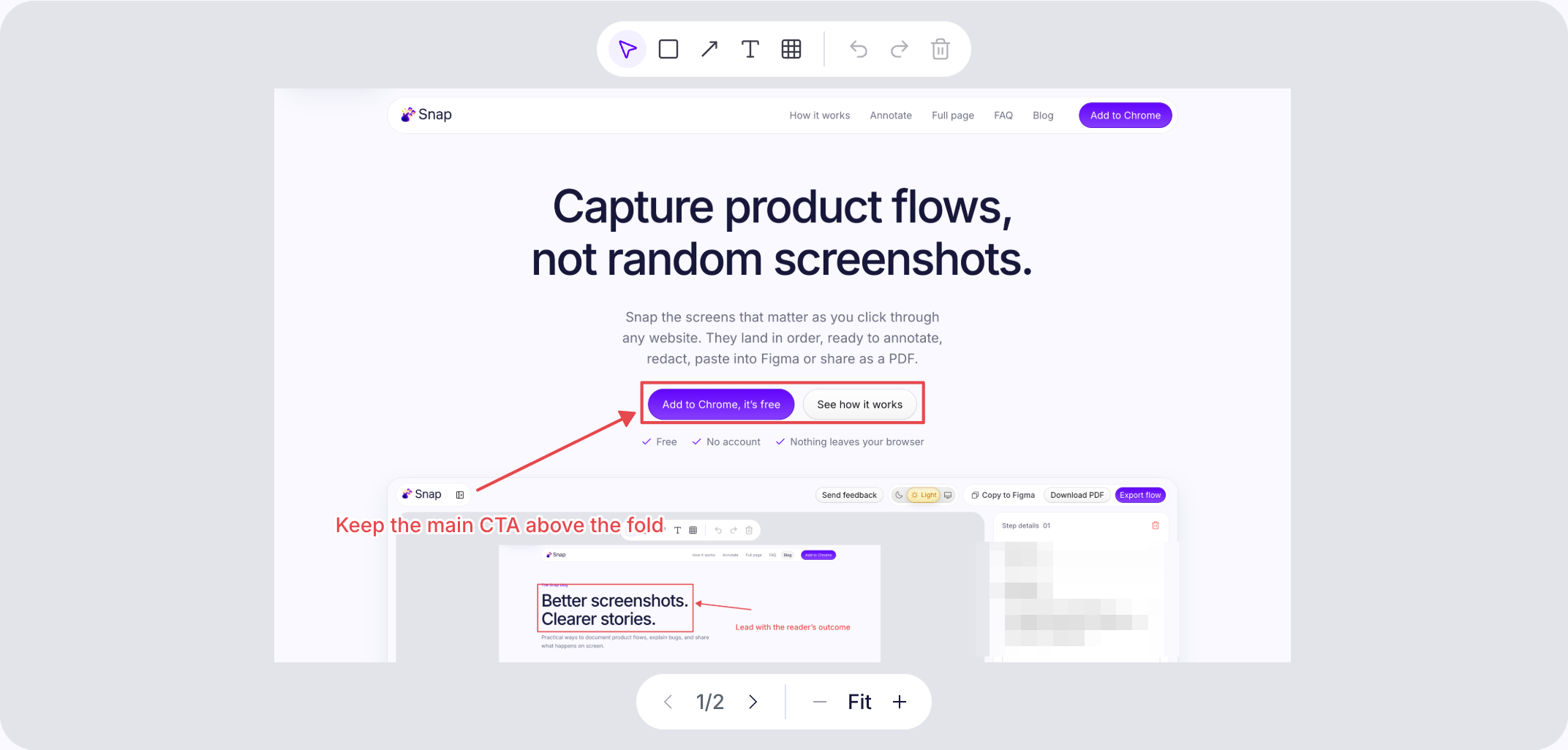
Switch Snap to Full page and press Snap. It scrolls the page, stitches every screen into one image, and puts your scroll position back when it is done.
How to
Click the Snap icon in your toolbar, name the flow and press Start Snapping. The Snap toolbar appears on the page.
Open the capture menu on the toolbar and pick Full page. Visible area and Selected area are there too.
Snap scrolls from top to bottom, stitches the screens into one image and returns you to where you were. Press Escape to cancel.
Download the step as a PNG, export the flow as a PDF or ZIP, or paste it into Figma. Add annotations first if you need to.
What gets captured
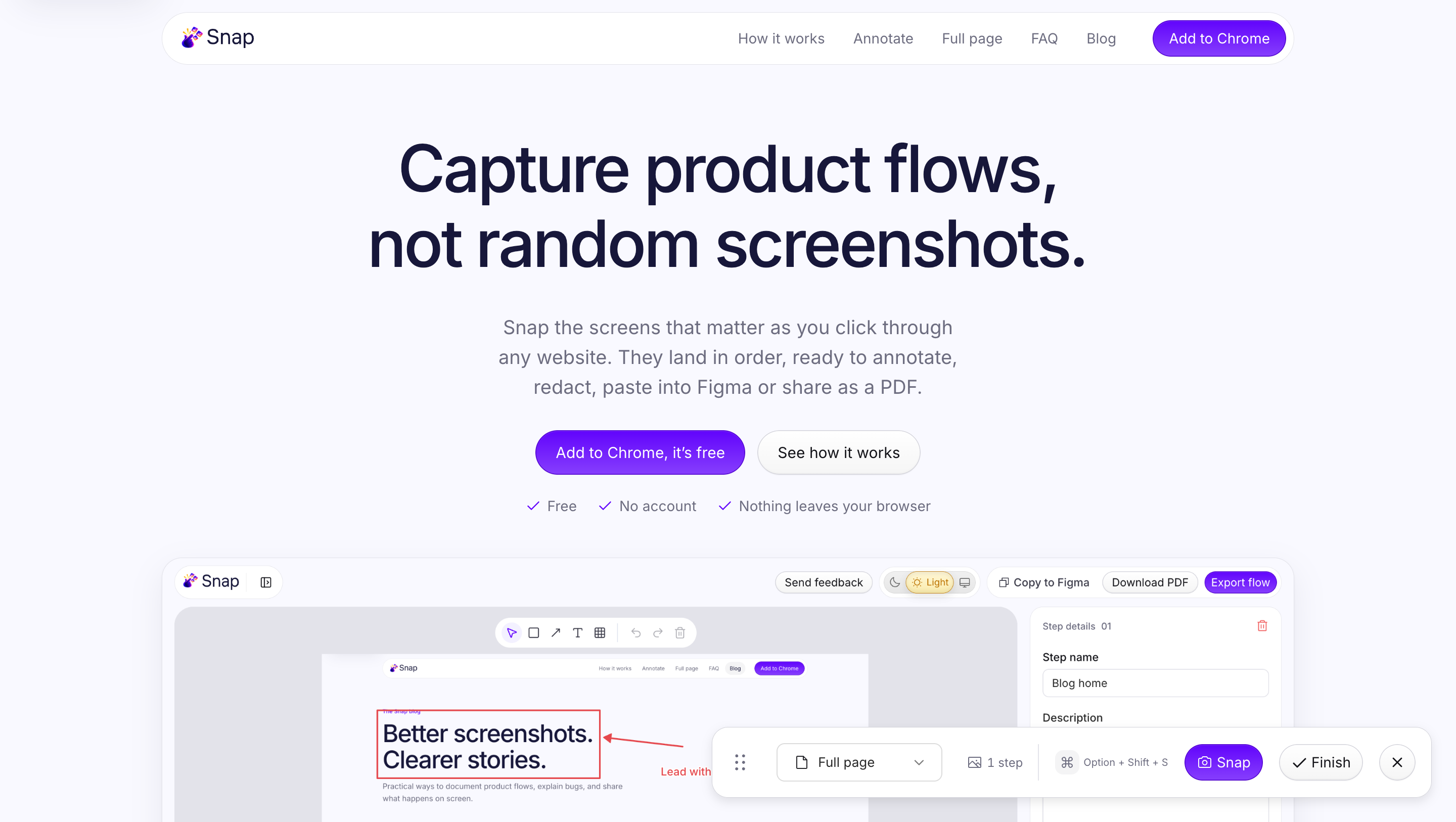
This is one Snap of the entire snapflow.in homepage, captured with Full page and scaled down. Scroll it.

Use cases
Design audits
Capture a competitor’s full landing page to study layout, hierarchy and copy in one image.
Reviews and sign-off
Share the whole page as a PDF so stakeholders comment on what actually shipped.
How to document product flows with screenshotsQA and regressions
Snap long pages before and after a release to spot what moved.
How to write a bug report with screenshot stepsFAQ
Install Snap, open it on the page and press Start Snapping. In the toolbar’s capture menu choose Full page, then press Snap. Snap scrolls and stitches the page into one image you can export as a PNG or PDF.
Up to 30 screens, 30,000 pixels tall and 64 million pixels in total per capture.
No. Fixed and sticky content is shown once, at the top of the capture, instead of on every screen.
On most pages, yes. Infinite feeds, pages that change height while scrolling, nested scrolling apps and wide horizontal layouts may need Visible area or Selected area instead. Browser-internal pages and incognito tabs are not supported.
Snap is free, with no account. Captures are stored encrypted in your Chrome profile and nothing is uploaded.
Keep exploring

Free in the Chrome Web Store. No account, nothing uploaded.