

You need to send a screenshot. You install an extension, click capture, and end up looking at a registration form.
An account can make sense when you want a shared library or cloud access. But sometimes you just want to capture a page, explain something and save the result.
Snap, InnoShot and sshot.online all describe no-account or no-sign-up screenshot workflows. They serve different needs: keeping a sequence together, editing an individual capture, or uploading an image to share a link.
Here’s how to choose between them without confusing “no sign-up” with “nothing uploaded.”
Compare the result you need
| Extension | Consider it for | Account and sharing model |
|---|---|---|
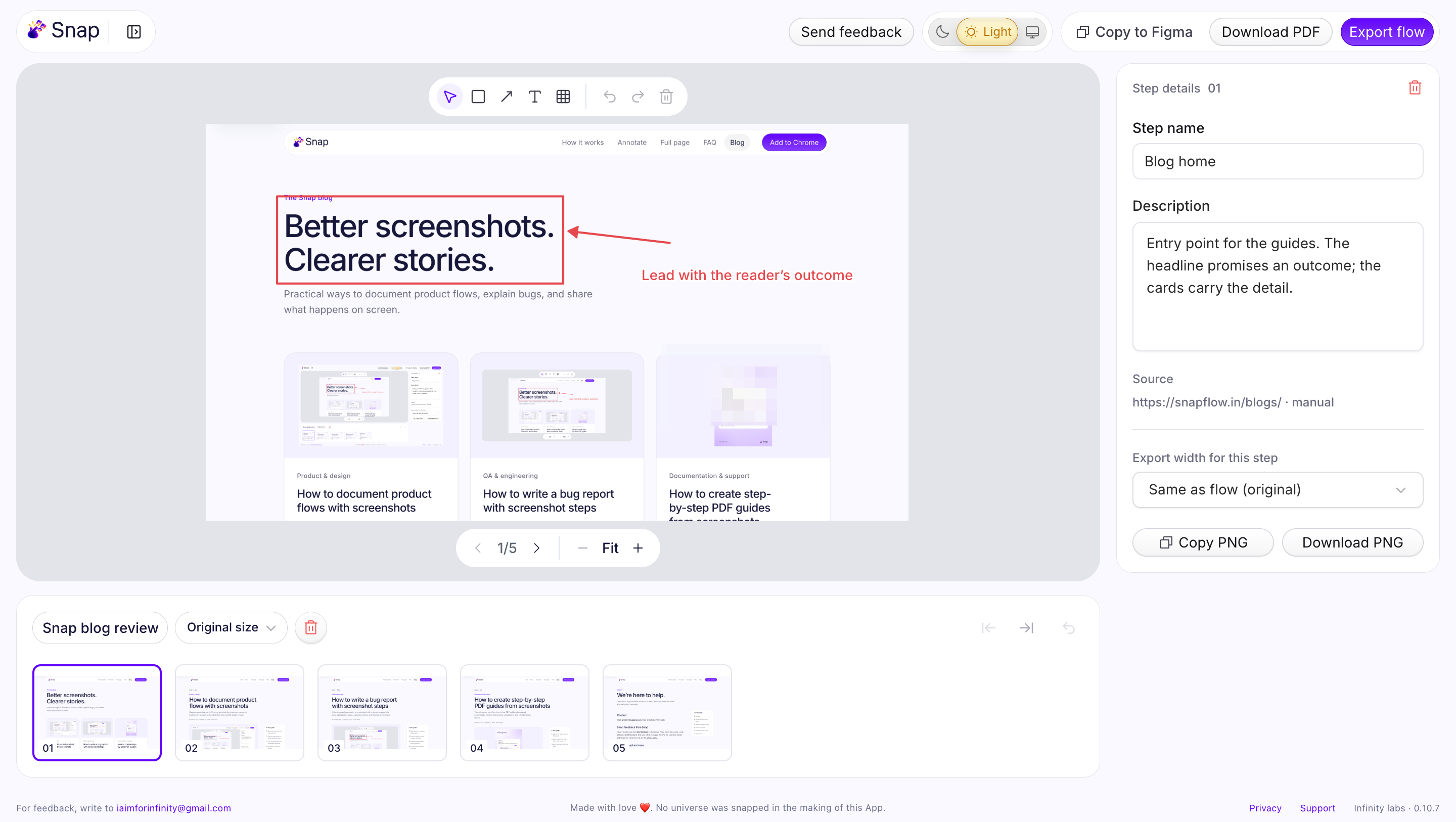
| Snap | Multiple screenshots organized into a flow | No account; export the captured flow rather than create a hosted Snap link |
| InnoShot | Editing and presenting an individual screenshot | Advertises no account and browser-based processing |
| sshot.online | A screenshot you want to copy, download or upload | Advertises no sign-up, with upload-based link sharing available |
The table summarizes the vendors’ descriptions. The linked sources below provide the feature details.
Snap: when one screenshot does not explain the task
A form error may need two images: what you entered and what happened after submission. A product review might need the menu, the selected option and the resulting screen.
Snap’s Chrome extension captures chosen states into an ordered flow. Its listing describes notes, annotations and exports to Figma, ZIP or PDF, without an account or cloud upload.
That makes it a relevant option when your main problem is keeping several captures understandable. Give the steps useful names and remove duplicates before exporting.
The tradeoff is sharing: Snap does not provide a hosted flow URL. You send the exported material or place it in a tool your team already uses. It also does not record video.
For an installation walkthrough, see how to use the Snap Chrome extension.
InnoShot: when the individual image needs more editing
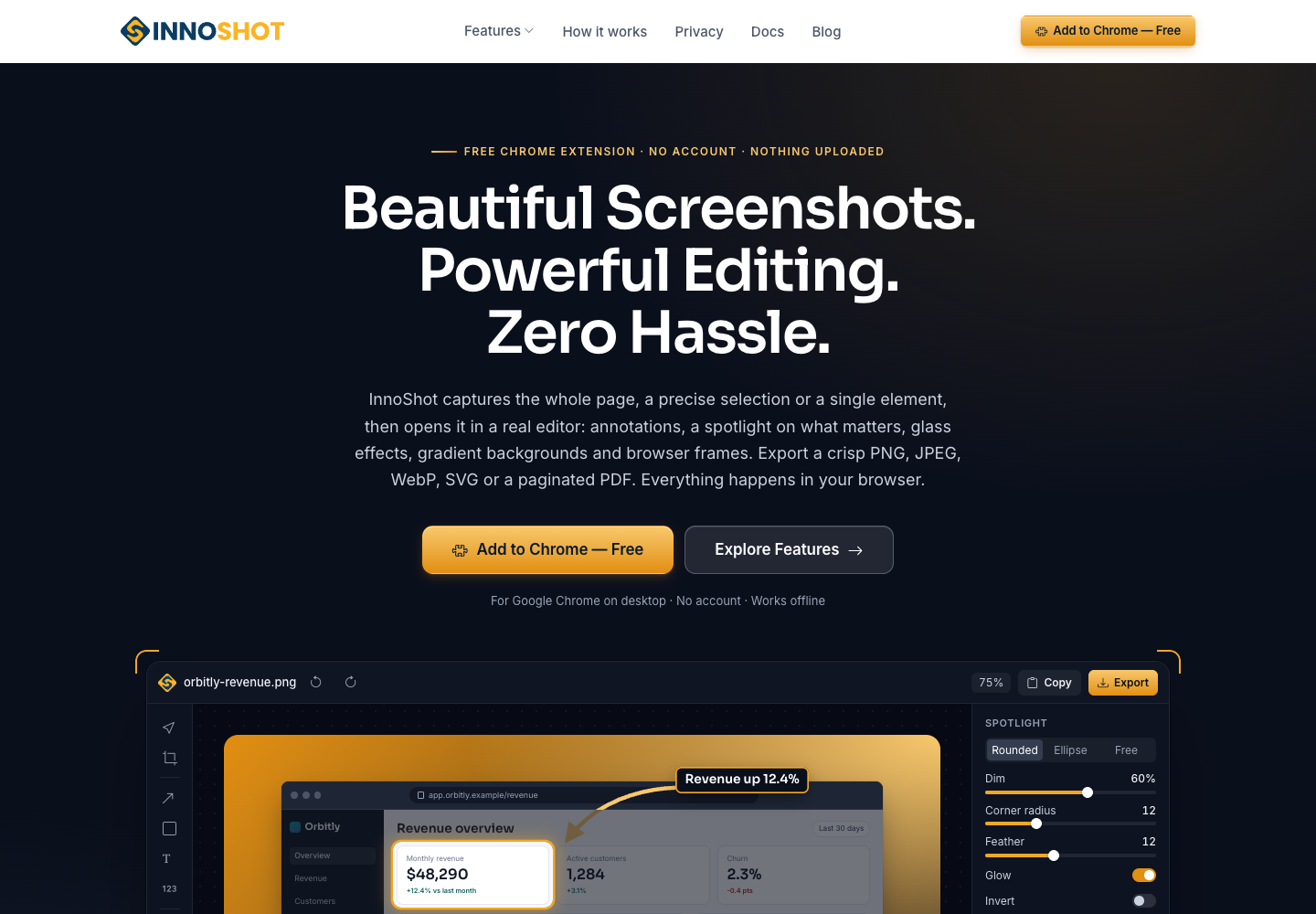
InnoShot describes a no-account Chrome extension with full-page, selected-area and element capture. Its editing features include annotations, backgrounds, spotlight effects and browser frames, with several image formats and PDF export.
Consider it when the final deliverable is a polished image: a screenshot for a presentation, a support explanation or a feature announcement. The vendor states that processing happens in the browser and screenshots are not uploaded.
Before settling on it, try the output you actually need. A useful evaluation is to capture one representative page, add a label and export at the size you plan to use. Check whether the important details remain readable.
sshot.online: when you want the option of a link
sshot.online’s extension page describes capture, cropping, annotation, copy and download options without sign-up. It also offers an upload action that produces a share link.
That is a different workflow from keeping everything on your device. It may suit a quick image handoff where a URL is more convenient than an attachment.
If you use the upload option, review the service’s current privacy and retention terms. The absence of a registration form does not tell you who can access an uploaded image or how long it remains available.
No account and local storage answer different questions
“No account” describes whether you need to register. “Local storage” describes where the captures are kept. A tool can offer no-account uploads, and another can require an account for a service you never intended to use.
Before installing, answer these questions:
- Can I finish the capture and export without registering?
- Does my chosen action upload the image?
- Do I need an image file, a PDF, or a hosted URL?
- Can I access the result outside the extension?
- What happens to saved work if I remove the extension or browser profile?
Treat a browser library as working storage, not your only backup. Export important captures to a location you manage.
Try a small task before moving your workflow
Use a page with test data and complete a real example: capture the screen, point to the relevant area, add a short explanation and deliver the result.
Open the exported file or shared link yourself. Check the text at normal reading size and make sure unrelated information is not included. For sensitive content, review our screenshot redaction guide.
The right extension should let you complete the job you came for. If that job involves several screens in sequence, add Snap from the Chrome Web Store and try capturing one short flow.
Try a screenshot extension with no sign-up
Install Snap and capture a short flow straight away. There is no account to create, and your screenshots stay on your device.
Add to Chrome, it’s free