

Snap is a free Chrome extension for capturing a process as a set of screenshots: a product flow, a bug, a how-to guide or a design review. You click Snap on the screens that matter; Snap keeps them in order with the page they came from, and you export the result when you are done.
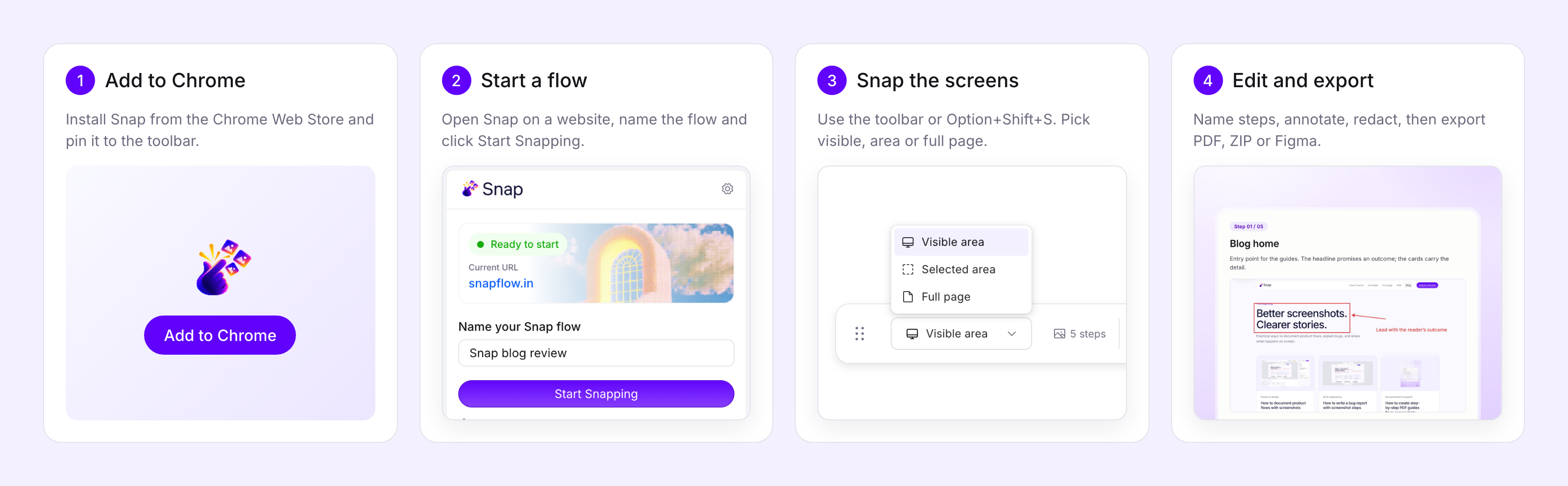
- Price: free, with no account and no paid tier.
- Works in: Google Chrome on desktop (version 116 or later), on normal websites.
- Privacy: screenshots stay in your Chrome profile, encrypted. Nothing is uploaded.
Step 1: Install Snap from the Chrome Web Store
- Open Snap on the Chrome Web Store and click Add to Chrome, then Add extension.
- Click the puzzle-piece Extensions icon in Chrome’s toolbar and pin Snap, so it is one click away.
- Open any normal website. Snap does not run on Chrome’s own pages, such as the Web Store or settings.
Step 2: Start your first flow
Click the Snap icon. Name the flow after the task you are capturing, for example “Invite a teammate”, and click Start Snapping.
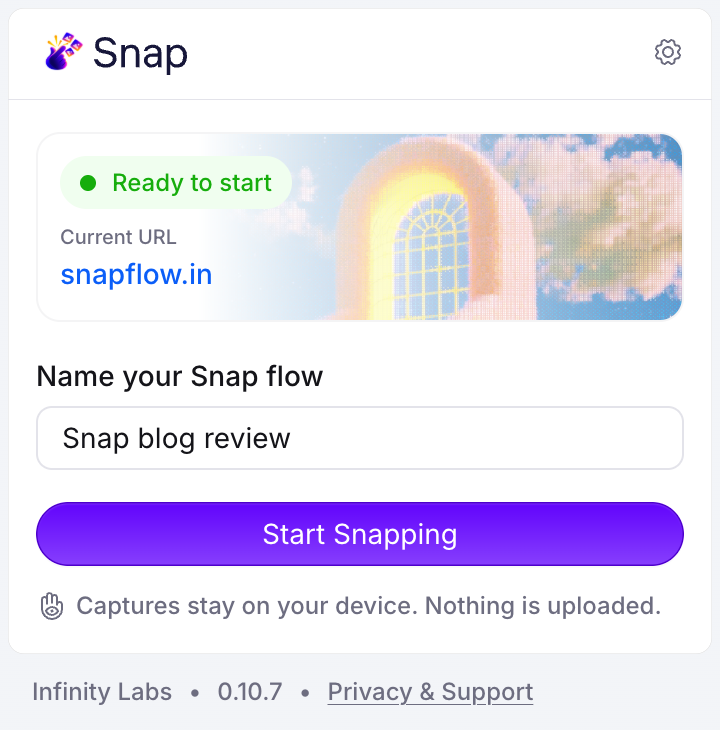
The first time, Chrome asks whether Snap may access all sites. Allowing it lets an open flow follow you into new tabs, other sites and sign-in windows; declining keeps Snap working one tab at a time. Either way, Snap only captures when you ask it to. More on this in capturing a workflow across tabs.
Step 3: Snap the screens that matter
A toolbar appears at the bottom right of the page. Use the website as normal and click Snap whenever the screen shows a step worth keeping. The step count goes up to confirm each save.
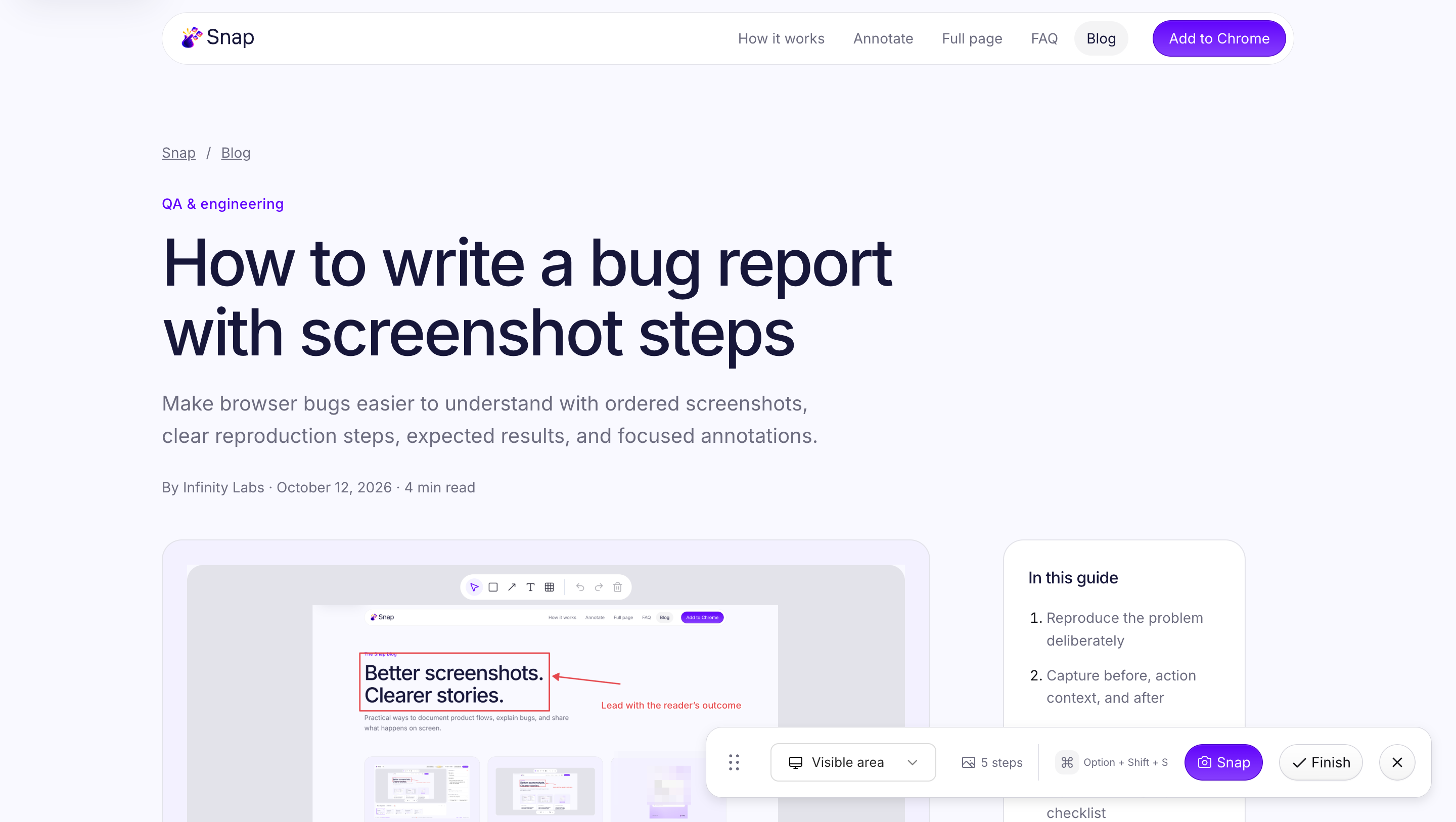
| Control | What it does |
|---|---|
| Capture mode | Visible area, Selected area or Full page |
| Snap | Adds the current screen to the flow |
| Option+Shift+S (Alt+Shift+S on Windows) | Snaps without reaching for the mouse, using the selected mode |
| Finish | Ends the flow and opens it in the editor |
| × | Discards the flow after a confirmation |
| Drag handle | Moves the toolbar if it covers something |
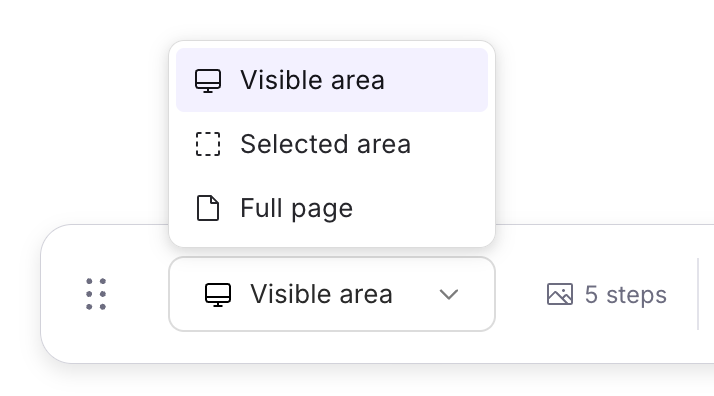
Use Selected area to drag a box around one part of the screen, and Full page to capture an entire scrolling page as one image.
Step 4: Edit the flow
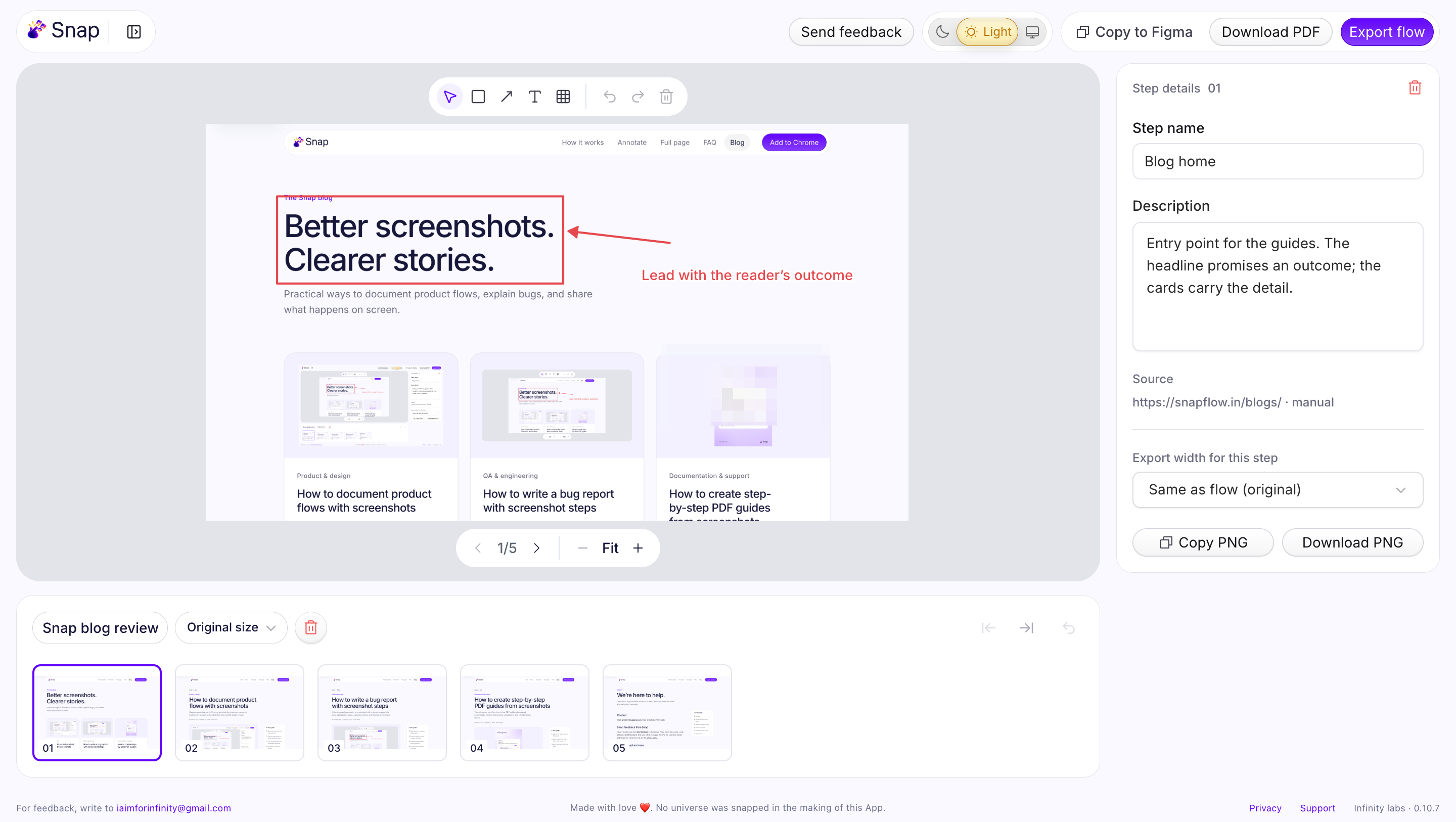
Click Finish. The editor opens with your steps as thumbnails along the bottom.
- Name and describe each step in the right-hand panel. These titles and notes appear in exports.
- Reorder by dragging thumbnails, and remove duplicates with the trash icon. Removed steps can be restored.
- Annotate with rectangles, arrows and text from the toolbar above the image.
- Redact private details with the pixelate tool. See how to redact screenshots safely.
Step 5: Export and share
| Export | Best for |
|---|---|
| Download PDF | A document people can read in order, one step per page |
| Export flow (ZIP) | Numbered PNGs plus the titles and notes, for tickets and wikis |
| Copy PNG or Download PNG | One step in Slack, an email or a doc |
| Copy to Figma | Pasting the whole flow onto a Figma canvas as frames |
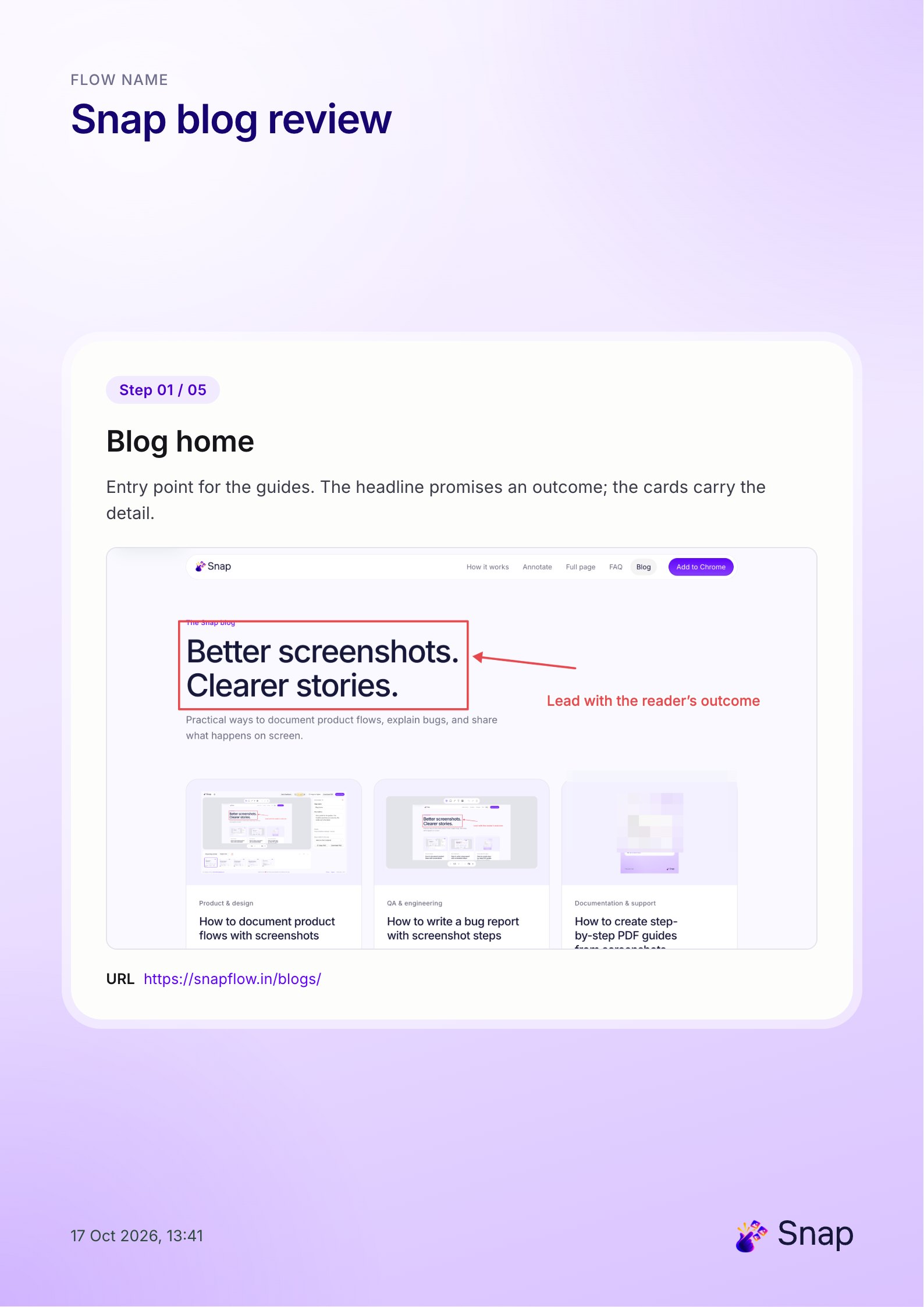
For a full walkthrough of the PDF option, read how to turn screenshots into one PDF.
Where your flows are saved
Flows live in Chrome on your computer, in Snap’s library. Click the Snap icon and the settings button to open it, then search, sort and reopen any flow. Because nothing is stored in the cloud, export anything important before removing the extension or clearing browser data.
Frequently asked questions
Is the Snap Chrome extension free?
Yes. Snap is free in the Chrome Web Store, with no account, sign-up or paid tier.
How do I take a screenshot with Snap?
Open Snap on a website, start a flow, then click Snap on the floating toolbar or press Option+Shift+S on a Mac (Alt+Shift+S on Windows).
Where does Snap save my screenshots?
In your Chrome profile on your computer, encrypted. Open the library from the Snap icon to see all your flows.
Why is the Snap toolbar missing on a page?
Snap does not run on Chrome’s own pages, the Chrome Web Store or incognito tabs. On a new tab, allow access to all sites, or open Snap there and click Continue flow here.
Can I change the Snap keyboard shortcut?
Yes. Go to chrome://extensions/shortcuts and set a different shortcut for Snap.
Does Snap work in Edge or Brave?
Snap is built and tested for Google Chrome on desktop. Other Chromium browsers may install it from the Chrome Web Store, but they are not officially supported.
Install Snap and capture your first flow
It takes about five minutes from Add to Chrome to your first exported PDF.
Add to Chrome, it’s free