

Screenshots are the fastest way to explain a bug, answer a support ticket or document a process. They also capture everything on screen: customer emails, account numbers, access tokens in the address bar and the notification that popped up at the wrong moment.
The short answer: crop out what you can, cover the rest with a solid box, and save the result as a new image before sharing. Blur and pixelation are fine for casual context, but they are not reliable for passwords, keys or account numbers.
What to hide before you share a screenshot
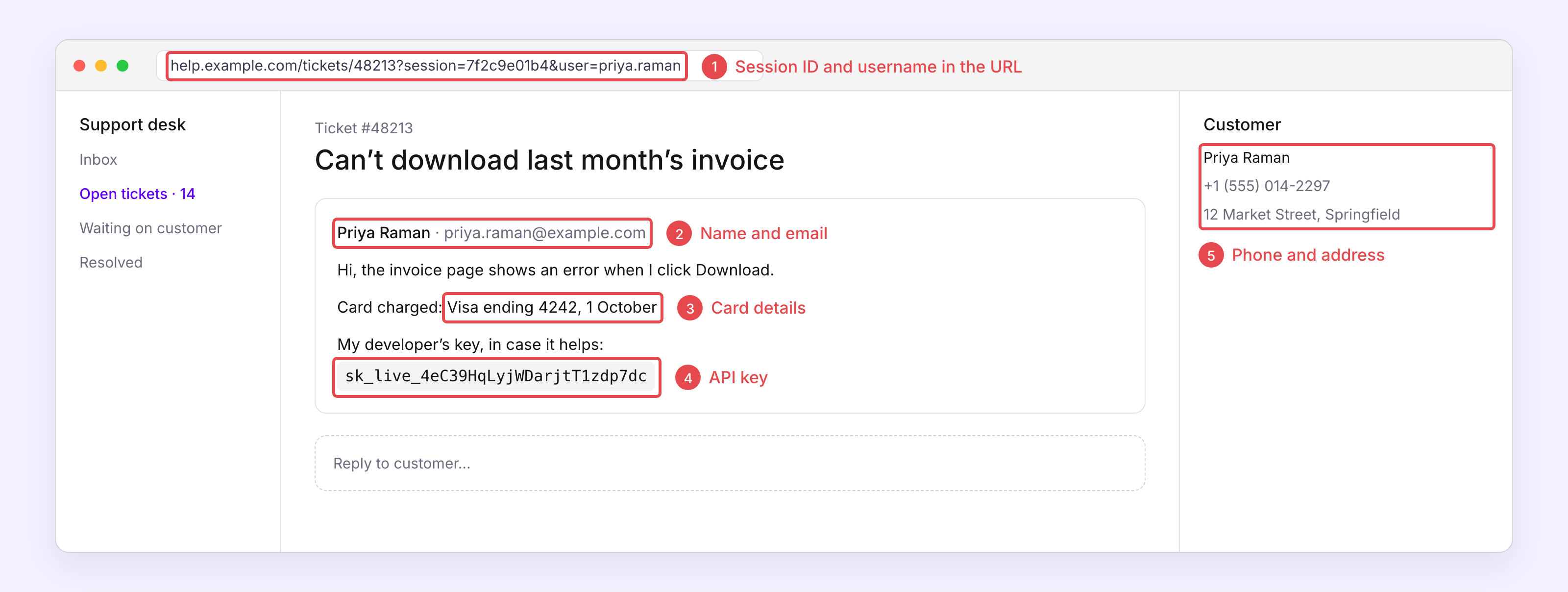
Scan the whole image, not just the area you meant to show. The usual suspects:
- Names, emails and phone numbers of customers or colleagues.
- The address bar. URLs often carry session IDs, usernames, order numbers or one-time tokens.
- Credentials: API keys, passwords shown in plain text, recovery codes and QR codes.
- Payment and account details, even partial card numbers and invoice IDs.
- Addresses and locations, including map previews.
- Everything around the content: other open tabs, bookmarks, chat previews and notifications.
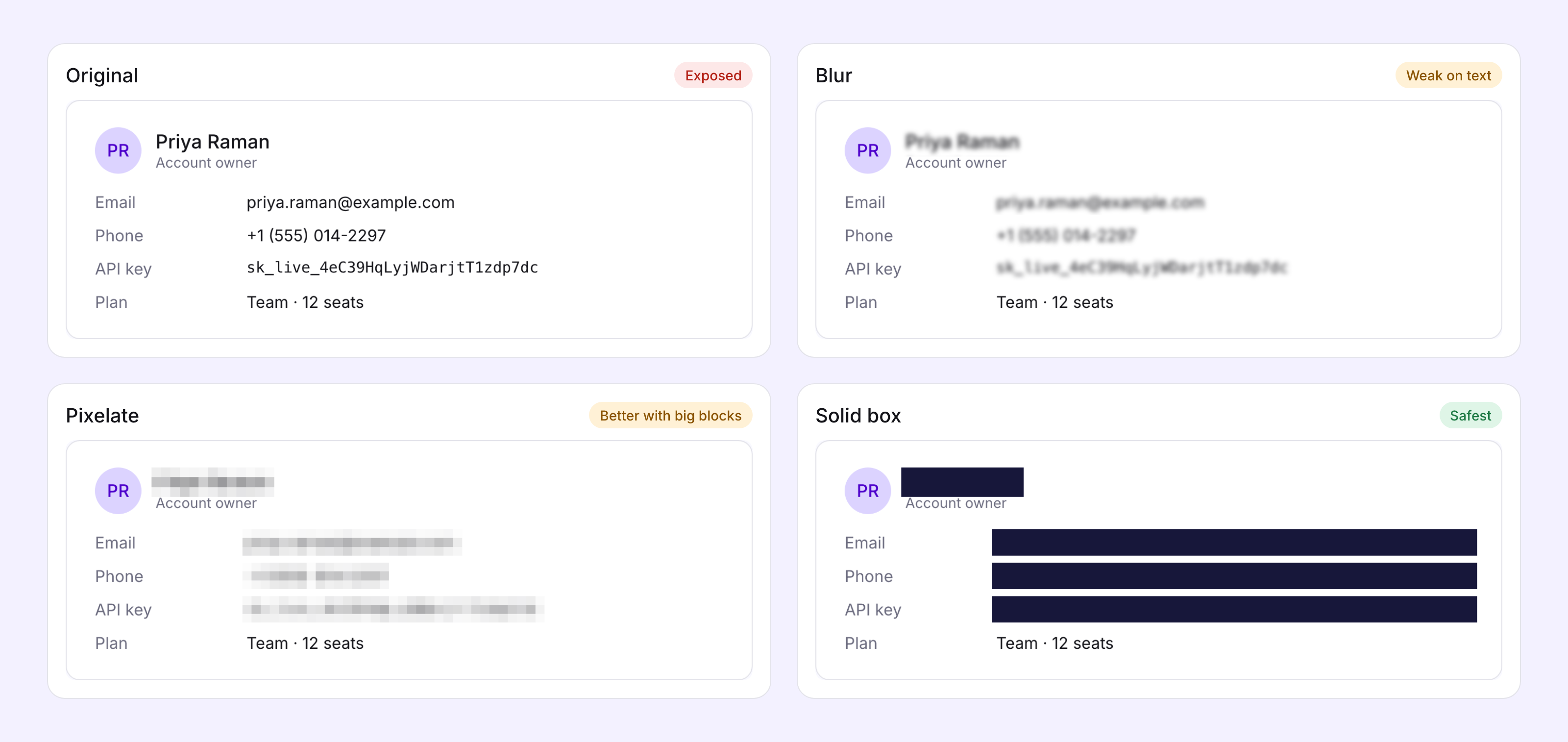
Blur vs pixelate vs solid box
All three hide information from a casual glance. They are not equally hard to undo.
| Method | How safe is it? | Use it for |
|---|---|---|
| Light blur | Weak on text. Researchers have recovered blurred and pixelated text, especially short strings in known fonts. | Faces in a background, non-sensitive context |
| Pixelate | Better with large blocks, but not a guarantee for short, predictable text such as numbers. | Names and emails in an internal review |
| Solid box | Safest when the box is saved into the image. There is nothing left to reconstruct. | Passwords, keys, tokens, card and account numbers |
| Crop | Safest of all: the pixels are gone from the image you share. | Anything at the edges of the screen |
This is not theoretical. A 2016 study showed that mosaic and blur are not viable for redacting text, and open-source tools since then have recovered pixelated text from screenshots. If a value would cause harm in the wrong hands, use a solid box or keep it out of the capture.
One more catch: covering something in an editor only helps if the saved file no longer contains it. Export or save a new, flattened image, then open that file and zoom in to check.
How to redact a screenshot on Windows
Recent versions of the Snipping Tool in Windows 11 can find and hide text for you:
- Take a screenshot with the Snipping Tool (Windows + Shift + S) and open it in the app.
- Click Text actions in the toolbar.
- Choose Quick redact to hide detected email addresses and phone numbers, or select other text, right-click it and choose Redact text.
- Save the screenshot as a new file and check it before sharing.
Quick redact only finds emails and phone numbers. Names, keys and anything inside images still need to be covered by hand. Keep the Snipping Tool updated: in 2023 a flaw nicknamed “aCropalypse” let parts of some cropped screenshots be restored, and it was fixed in an update.
How to redact a screenshot on Mac
- Take the screenshot (Shift + Command + 4) and click the thumbnail, or open the image in Preview.
- Open Markup and choose a rectangle from Shapes.
- Set the fill colour to solid black or a colour close to the background, and remove the border.
- Draw the shape over each detail you want to hide.
- Export a new copy (File, then Export) and share that file, not the one you are still editing.
Preview’s dedicated Redact tool works on PDFs, not on screenshots, so use shapes for images. Shapes on a file that is still open for editing can be moved, which is why exporting a flattened copy matters.
How to redact screenshots in Chrome with Snap
When you capture a whole process, redacting each screenshot in a separate app gets slow. Snap’s editor lets you hide details across the whole flow before you export it.
- Capture the screens with Snap, then click Finish to open the editor.
- Select a step and choose the Redact tool (shortcut B).
- Drag over the area to hide. Snap replaces it with large, averaged blocks, about 1/64 of the image width each, not a light blur.
- Repeat for each step, then export the flow as a PDF, a ZIP of PNGs or a single PNG.
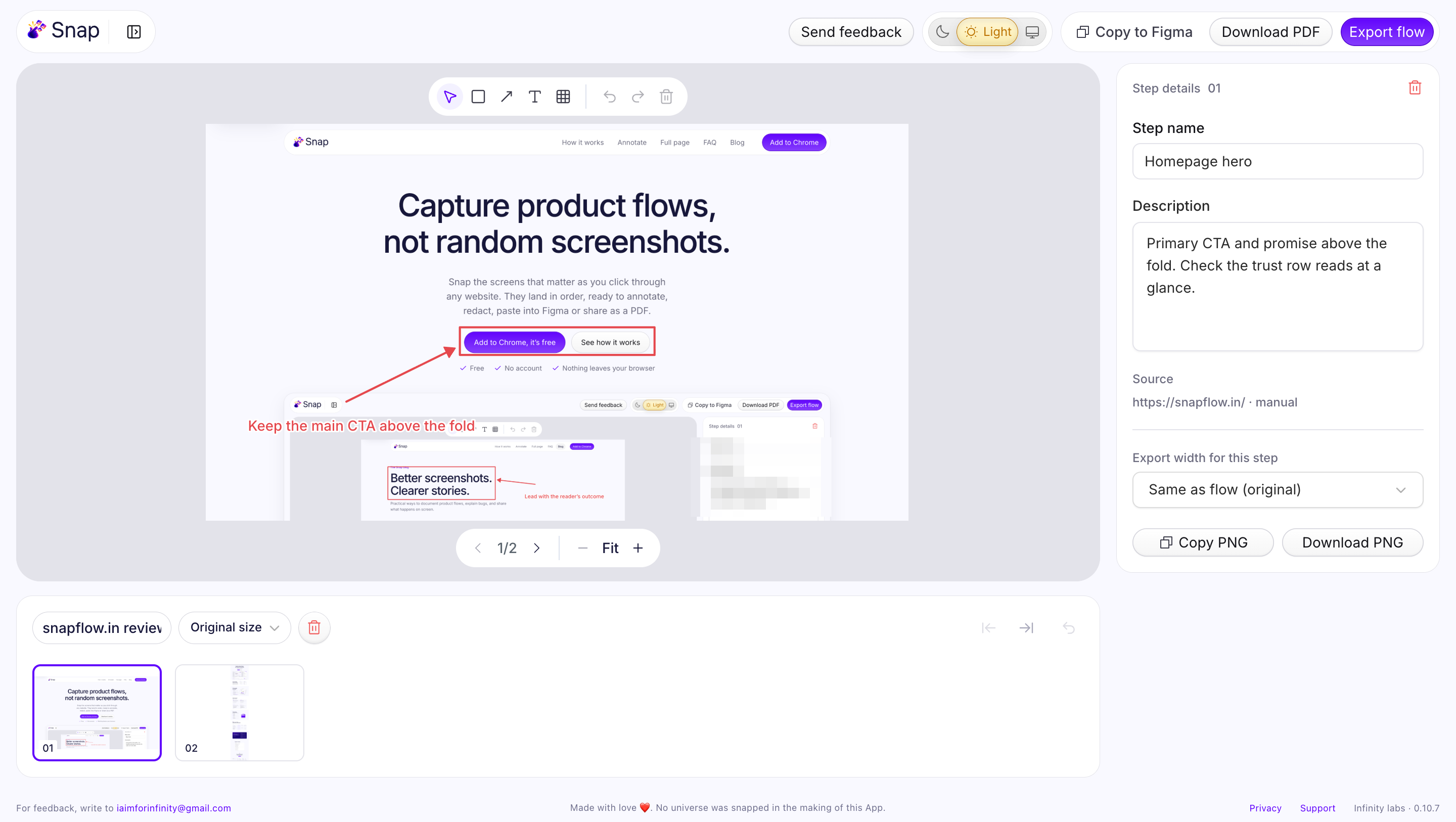
Two things to know. First, the original screenshot is kept in Snap’s editor so you can undo a redaction; the exported files contain only the redacted version. Second, Snap’s redaction is pixelation. For passwords and keys, avoid capturing them at all, or crop them out after export.
A 30-second check before you hit send
- Open the exported file, not the editor, and zoom in on every redaction.
- Read the address bar, tab titles and any notifications.
- Look for the same value appearing twice, such as an email in the header and in the message body.
- Check the file name. “acme-refund-priya.png” leaks what the image hides.
- If you are not sure, crop it out.
For more on clear, safe bug screenshots, see how to write a bug report with screenshot steps.
Frequently asked questions
Is blurring a screenshot safe?
Not for sensitive text. Light blur and small-block pixelation can sometimes be reversed, especially for short values in a known font. Use a solid box or crop the area out for passwords, keys and account numbers.
Can pixelated text be unpixelated?
Sometimes. Research and open-source tools have recovered text from pixelated screenshots. Large blocks make it much harder, but a solid box is the only cover that leaves nothing to reconstruct.
What is the safest way to redact a screenshot?
Crop out what you can, cover the rest with an opaque box, save a new flattened image and check that file before you share it.
How do I hide personal information in a screenshot on Windows?
Open the screenshot in the Snipping Tool, click Text actions and choose Quick redact for emails and phone numbers, or select text and choose Redact text. Cover anything else with a shape, then save a new file.
How do I redact a screenshot on Mac?
Open it in Preview or Markup, draw a rectangle from Shapes, set a solid fill with no border over each detail, and export a new copy to share.
Does Snap upload my screenshots to redact them?
No. Snap redacts in its editor on your device and stores flows in your Chrome profile. Only the files you export and share leave your computer.
Redact a whole flow in one place
Capture the process with Snap, hide private details on every step, and export a clean PDF or set of images.
Add to Chrome, it’s free