

You send a screenshot with “this needs fixing.” The reply comes back: “Which part?”
An arrow would help. So would a short label explaining what should happen. But if the problem only appears after choosing an option, a marked-up image of the final screen may still leave out the important context.
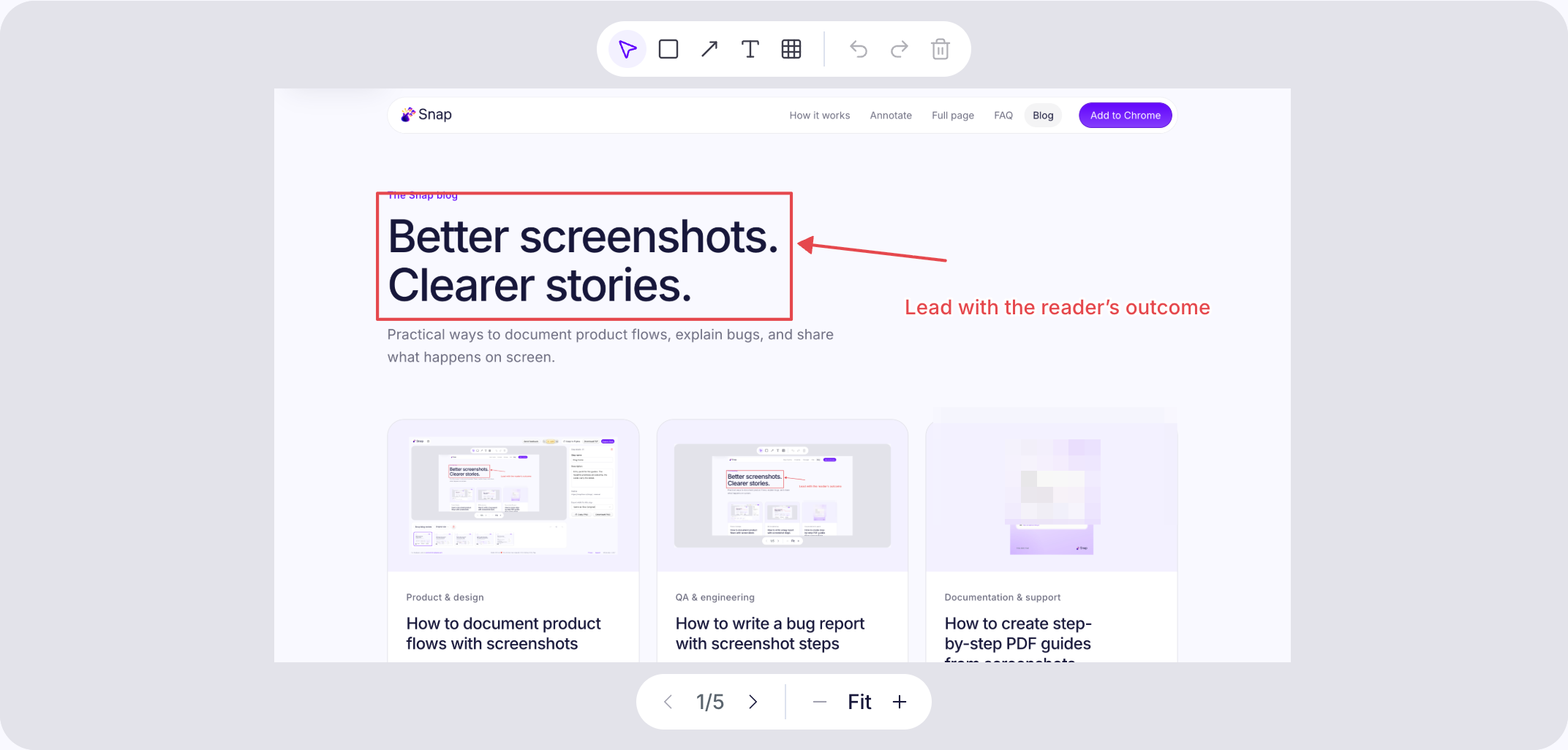
Choosing a screenshot annotation Chrome extension starts with the evidence you need to send. Snap is designed around screenshot sequences, Awesome Screenshot combines screenshot annotation with recording tools, and Web Highlights focuses on highlighting and notes on websites and PDFs.
These tools overlap in places, but they do not produce the same kind of reference.
Screenshot annotation or live webpage highlights?
A screenshot annotation is attached to a captured image. It shows a specific state at a particular moment, which is useful for explaining a layout issue or giving visual feedback.
A webpage highlight is for marking text while reading and returning to that material. Drawing over a live page is another category: it can help during a presentation, but you still need to decide how to preserve the explanation afterward.
Before comparing extensions, finish this sentence: The other person needs to see…
- A specific area of one captured screen.
- Several states that explain what happened.
- A passage of text with my notes.
- An interaction where timing and movement matter.
That answer narrows the choice more usefully than counting toolbar icons.
Compare the tools by purpose
| Tool | Relevant use case | What to evaluate |
|---|---|---|
| Snap | Explaining a product journey with annotated screenshot steps | Step order, notes and the exported flow |
| Awesome Screenshot | Capturing and marking an image, with recording available too | Capture mode, annotation options and your chosen delivery method |
| Web Highlights | Saving passages and notes from websites or PDFs | How highlights and notes fit your reading workflow |
The following sections link to the official descriptions behind this comparison.
Snap for feedback that needs a sequence
Snap on the Chrome Web Store describes manual capture of multiple UI states, with reordered steps, notes, annotations and Figma, ZIP or PDF exports. The captures stay in the browser until you export them.
For example, a delivery-cost issue might need the initial summary, the shipping selection and the updated total. Naming those states makes the explanation easier to follow than sending three loosely labeled attachments.
Use an annotation to identify the affected area and a note to explain the observation. The sequence supplies the context between screens.
Snap is a screenshot-flow tool. Choose a recorder when motion matters, and another sharing workflow if you require a hosted URL. For a structured example, see our guide to documenting UI bugs.
Awesome Screenshot for captures and recording
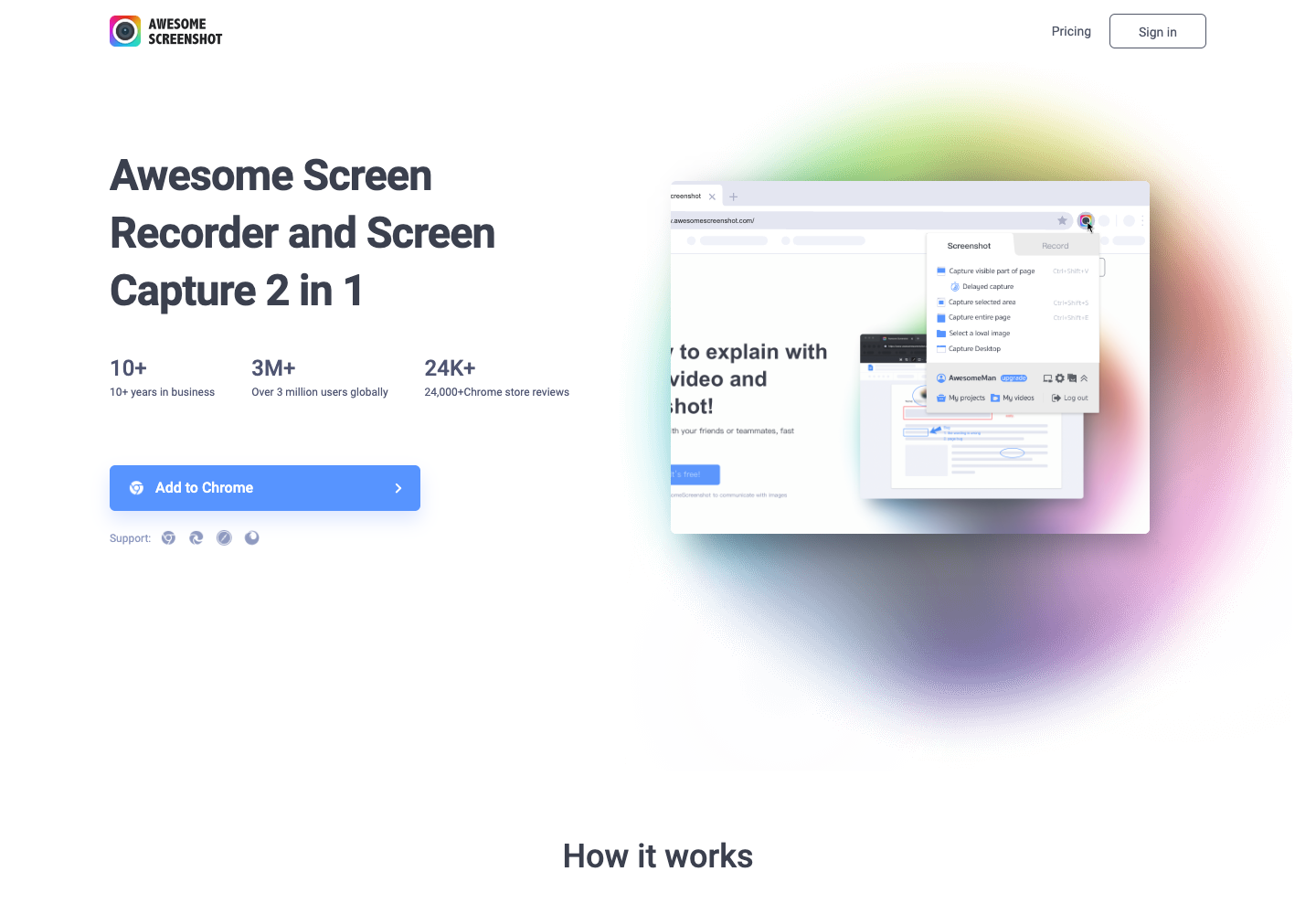
Awesome Screenshot advertises full-page screenshots, screenshot annotation, and screen-and-camera recording. It also lists connections to collaboration tools such as Trello, Slack and Asana.
Consider it if your feedback varies between a still image and a recorded explanation. A layout question might only need an annotated capture; an interaction problem may be clearer in motion.
Check the current plan and account requirements for the exact feature you intend to use. The availability of recording, editing and sharing under one product name does not mean every option has the same limits.
Web Highlights for passages and research notes
Web Highlights’ Chrome listing describes website and PDF text highlighting, notes, bookmarks and organization features.
This is relevant when you are reading an article, collecting quotations or keeping notes beside written material. It addresses a different job from showing the appearance of a checkout error.
If your main goal is marking text you want to revisit, start with this category. If you need to show a specific visual state, use a screenshot workflow and keep the source context with the image.
Make each annotation explain one thing
More markup does not always make feedback clearer. Five arrows pointing in different directions can leave someone working out which issue to address first.
Try this structure:
- Keep enough of the screen to establish location.
- Point to the relevant element with one clear callout.
- Describe what you observed in plain language.
- State the intended result or the question you need answered.
For example: “The total stays unchanged after Express delivery is selected. Should the delivery fee appear here?”
That is more actionable than “Wrong total,” and it does not assume a cause you have not verified.
Evaluate the exported result, not only the editor
Before adopting an extension, send yourself one representative example. Check that the annotation is readable, the capture has enough context and the destination supports the output.
For multi-step feedback, check the sequence as well. A clearly annotated error screen can still be confusing if the preceding action is missing.
Use the tool that matches the explanation. When that explanation spans multiple screens, try Snap’s screenshot-flow extension and keep the steps together from capture to export.
Annotate a whole flow, not one screenshot
Snap adds boxes, arrows, text and pixelation to each step, then exports the annotated sequence as one file.
Add to Chrome, it’s free