

The capture finishes, but half the page is missing. Or the navigation bar appears three times. Or the screenshot stops at the bottom of a dashboard while the table inside it keeps scrolling.
Before installing another extension, identify what went wrong. A full-page screenshot can fail because content hasn’t loaded, a panel scrolls independently, or the page changes while it is being captured. Those problems need different fixes.
Start with one visible-area capture. If that works, the issue is likely connected to capturing beyond the current view rather than saving an image at all.
Match the symptom to the next check
| What you see | What to check next |
|---|---|
| Blank spaces where images should be | Scroll through the page and allow the images to load |
| A header repeated down the capture | Try another capture method or use separate viewport captures |
| A table cut off inside a dashboard | Check whether the table has its own scrollbar |
| Content changes between sections | Pause interactions and use stable test data |
| The image stops before the end | Check the tool’s capture limits and whether the page has an actual end |
| Capture fails on only one page | Test on a normal webpage and review extension access |
These checks narrow the problem. They do not guarantee that a particular capture method can handle every website.
Load the content before taking the screenshot
Some pages load images or sections only when you scroll near them. Capturing immediately after opening the page can leave gaps where that content belongs.
Scroll slowly through the area you need. Wait for placeholders to resolve, then return to the intended starting position and try again. Avoid switching filters or opening panels while the capture runs.
For an infinite feed, choose a stopping point. “The entire page” is not a useful target when the page keeps adding more items. Capture a defined section or a short sequence instead.
Check whether the page or a panel is scrolling
A dashboard may have a fixed outer page and a separately scrolling table, message list or sidebar. Capturing the outer document does not necessarily include all the content inside that panel.
Put the pointer over the relevant area and scroll. If only the panel moves, you have found a separate scroll region.
For documentation, capture the meaningful panel states individually and label their order. If you need every row of a report, use the application’s data export where available. A screenshot is a visual reference, not a reliable replacement for the underlying dataset.
Handle sticky headers without changing the evidence
A sticky navigation bar remains visible as you scroll. Capture methods that combine several views must account for it; otherwise it may appear more than once.
Try a different capture method and inspect the result. For a documentation task, separate screen-sized images can be clearer than one long image with repeated navigation.
Avoid editing the page’s CSS simply to make a bug-report capture look cleaner. If you deliberately modify the interface for an illustration, label it as an edited illustration. A reviewer should know whether the image shows the original state.
Try Chrome’s built-in capture as a comparison
Chrome DevTools provides screenshot commands through its Command Menu.
Open DevTools, open the Command Menu with Ctrl + Shift + P on Windows or Command + Shift + P on Mac, and search for “screenshot.” Select Capture full size screenshot for a full-document attempt.
Compare the output with the extension capture. If both omit the same panel, that is useful evidence about the page structure. DevTools is another method to try, not a promise that every dynamic page will render perfectly.
Check that opening DevTools has not changed the viewport enough to trigger a different layout.
Check access before reinstalling
If capture fails on one site but works elsewhere, review the extension’s site-access settings. Chrome’s internal pages and some browser-controlled surfaces behave differently from ordinary websites.
For Snap, the support guide explains site access and continuing a flow across tabs. Test on a normal webpage before treating a restricted-page failure as a broken installation.
Export important saved work before removing an extension or clearing its storage. Reinstallation should not be the first troubleshooting step.
Use a screenshot flow when the sequence matters more than page length
A long screenshot is useful for a static page. A checkout, onboarding journey or settings task usually needs several states instead.
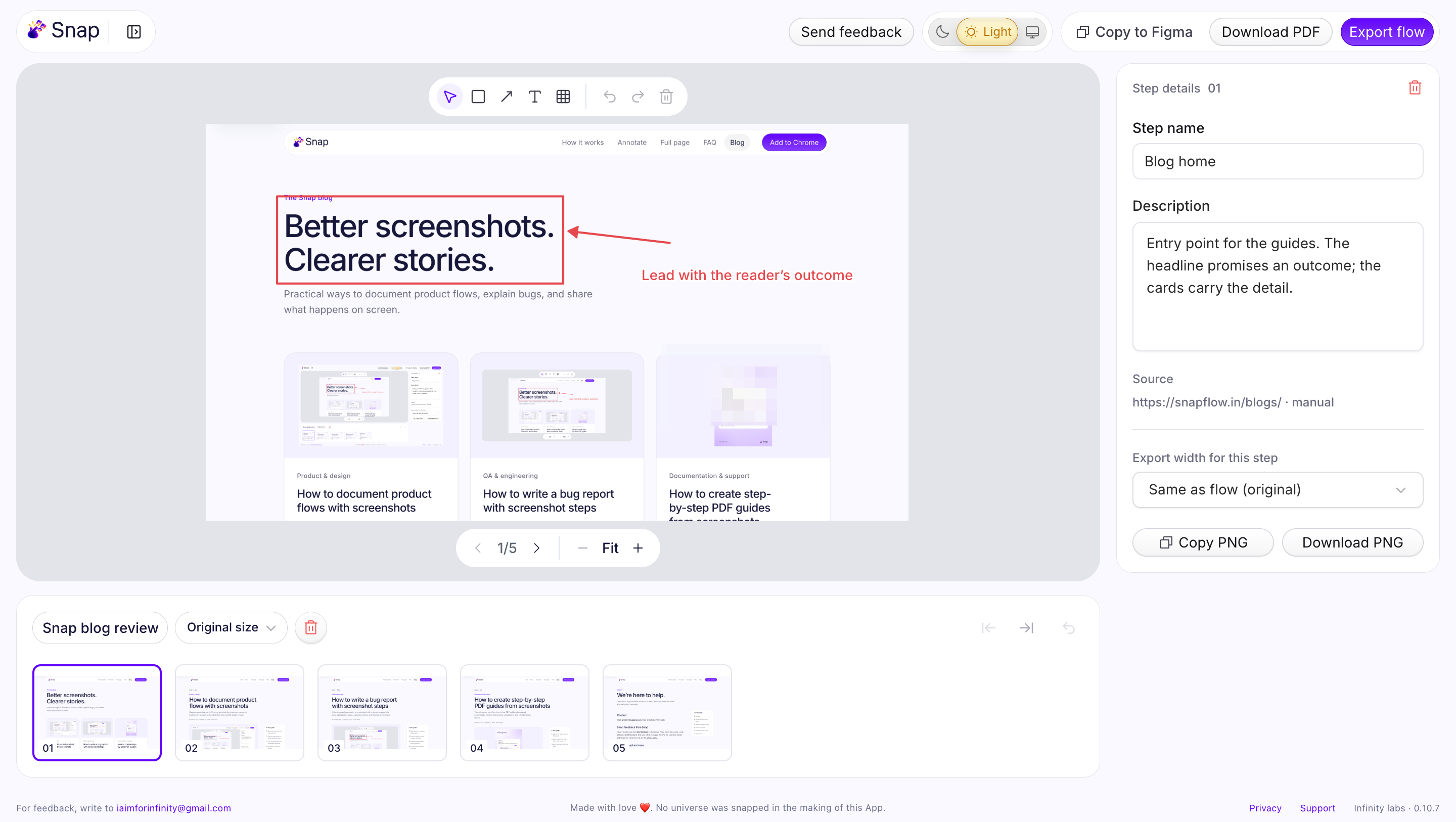
With Snap’s Chrome extension, capture the moments that explain the task, name the steps and export the sequence. That avoids forcing several interactions into one oversized image.
Before sharing, check that each image is readable and that the sequence includes the context someone else needs. For a troubleshooting ticket, include the page, capture mode and the part that was missing. That makes the report much easier to investigate than “full-page capture is broken.”
Capture full pages and the steps around them
Snap captures the full page, the visible area or a selection, and keeps several captures together as one flow you can export as a PDF.
Add to Chrome, it’s free