

A full-page screenshot is useful when you want to save a long webpage. But a product review rarely ends with one page. You open a menu, choose an option and reach a different state. Now you need to explain the sequence, not just save the page.
The right GoFullPage alternative depends on what you need next: Snap for ordered screenshot flows, InnoShot for editing and presenting individual captures, or Awesome Screenshot for a workflow that also includes video recording.
If GoFullPage already gives you the result you need, there may be no reason to switch. Start with the task your current setup is not handling.
When should you look beyond GoFullPage?
GoFullPage’s Chrome listing describes full-page capture and includes editing features in its product history. It would be misleading to treat it as a tool that can only take a basic screenshot.
A useful comparison is about the workflow around the capture:
- Do you need several states kept in order?
- Do you want to style a screenshot for a presentation?
- Does the explanation require movement or narration?
- Will the recipient use an image, a document or a recording?
If your only issue is an incomplete capture, try the full-page screenshot troubleshooting guide first. Another extension may encounter the same dynamic content or scrolling panel.
Compare the alternatives by the work you need to finish
| Tool | Consider it when | Main tradeoff to understand |
|---|---|---|
| Snap | You need a sequence of screenshots with notes | No video recording or hosted flow link |
| InnoShot | You want to edit and present an individual capture | Evaluate the image-editing workflow against your delivery needs |
| Awesome Screenshot | You need both screenshots and recordings | Check the plan requirements for your chosen features |
These are different directions to explore, rather than a claim that one extension captures every website better.
Snap: for screenshot flows and product walkthroughs
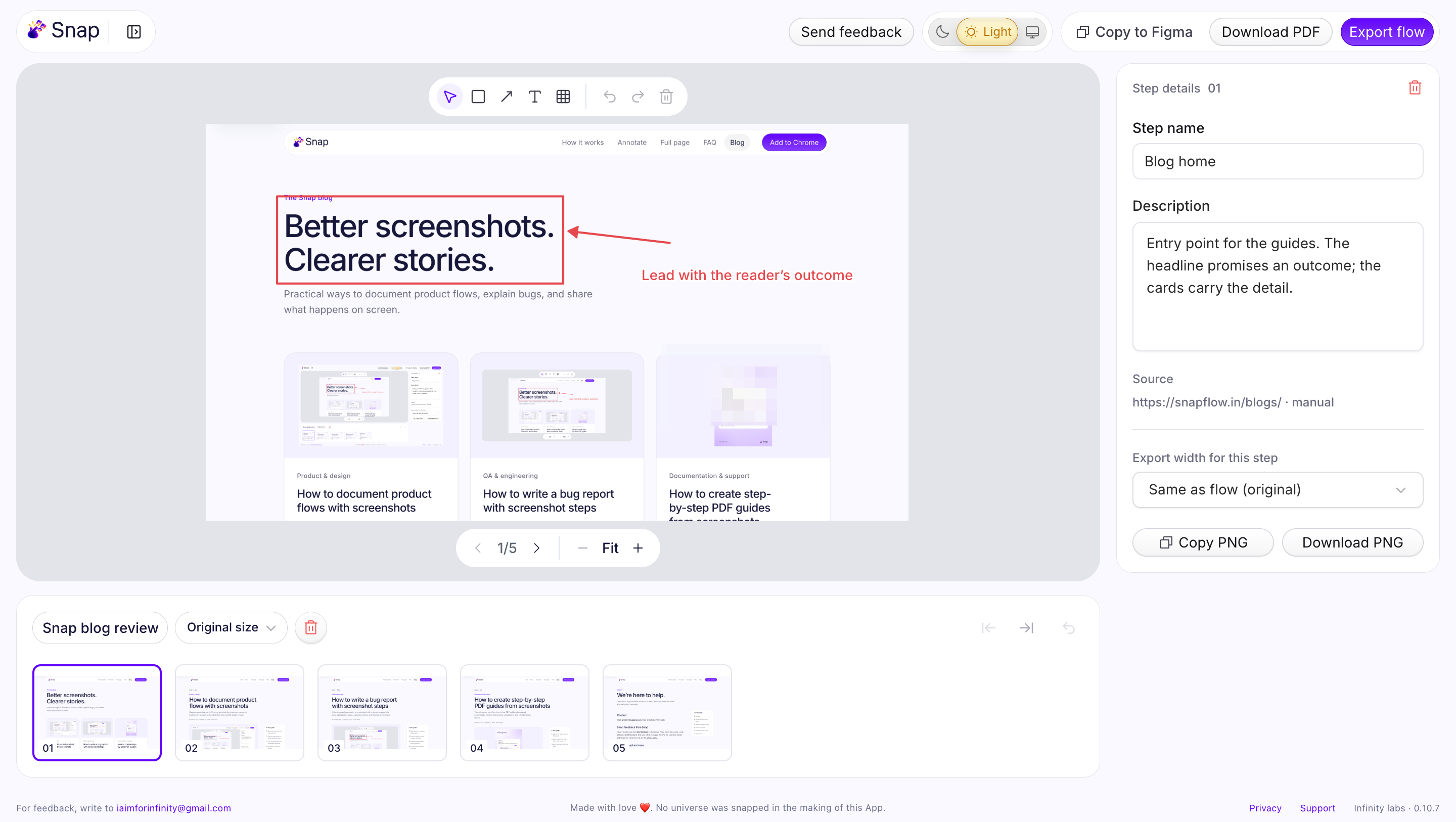
Snap’s Chrome extension lets you capture chosen browser states, keep them in sequence, add notes and annotations, and export to Figma, ZIP or PDF.
Imagine reviewing a checkout. One long screenshot can show the checkout page, but it cannot show the same order before and after selecting delivery. Capture those as separate steps and name them by what changed.
Snap is suited to that kind of handoff. You decide when to capture rather than recording a continuous video. The flow gives the reader an order to follow, and the notes explain what happened between images.
The extension works without an account and keeps captures in the browser. Sharing happens through exports; it does not create a hosted Snap URL. If a video or live link is essential, choose a tool that provides it.
For the first capture, follow the Snap getting-started guide.
InnoShot: for editing and presenting a screenshot
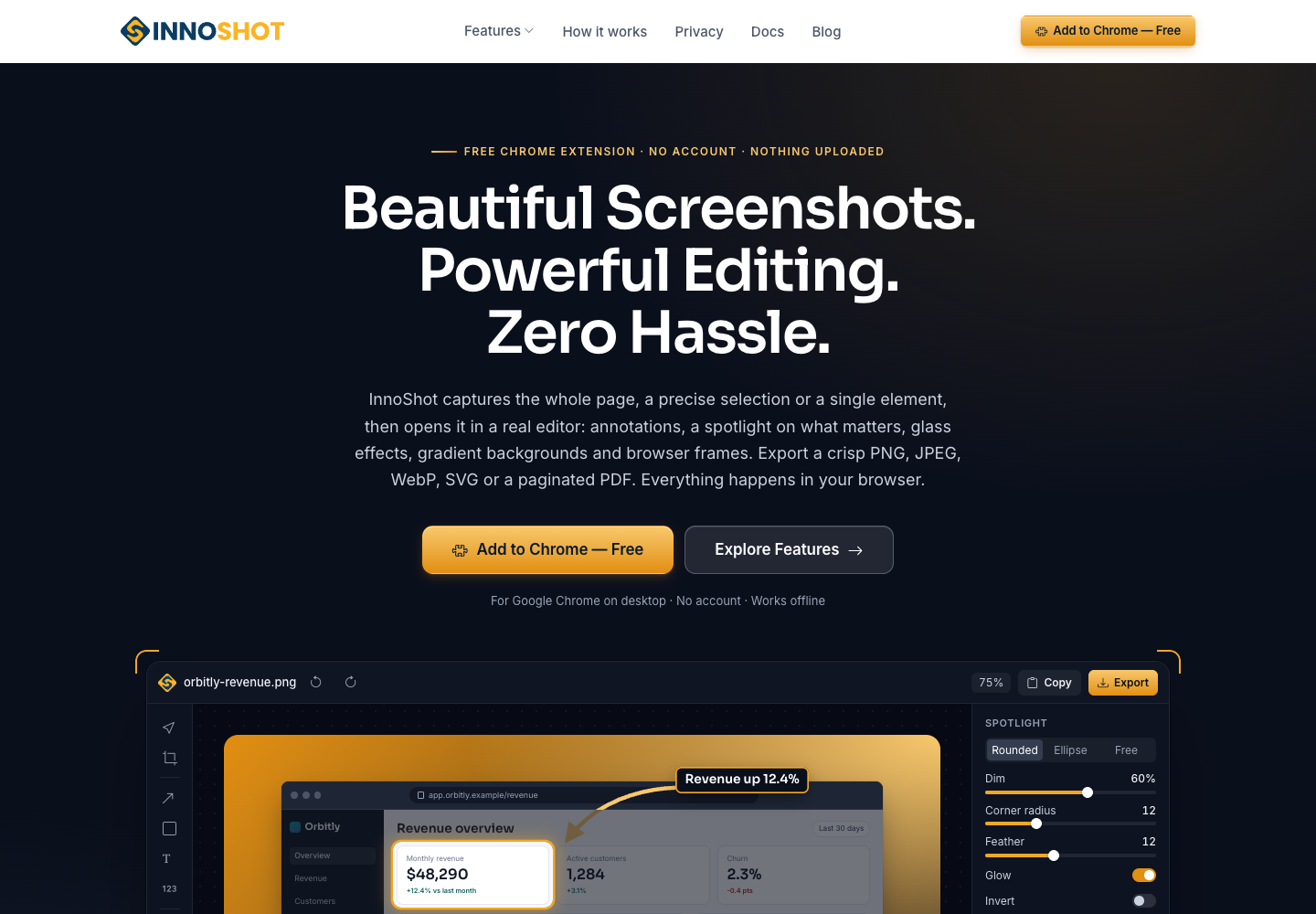
InnoShot offers full-page, selected-area and element captures, with editing features such as annotations, backgrounds, spotlight effects and browser frames. Its website describes browser-based processing without an account.
That makes it worth considering when the deliverable is an individual image for a presentation, support response or feature announcement. The question is less about preserving a journey and more about making one capture readable and presentable.
Try a representative image before moving your workflow. Add the callouts you normally need, export it and view it at the size your audience will see. Decorative framing should not make the interface text too small to read.
Awesome Screenshot: for still images and recorded explanations
Awesome Screenshot advertises full-page screenshots, image annotation and screen-and-camera recording. It also lists connections to collaboration tools including Trello, Slack and Asana.
Consider it when some tasks need a still image and others need a demonstration. An error label may be clear in one annotated screenshot; a flickering panel or drag interaction is often easier to explain in motion.
Check current account and plan requirements for the exact capture, editing and delivery features you intend to use. Do not assume everything under one product name has the same limits.
Test the output before choosing the extension
Use the same small task to evaluate each option. For example, capture a settings screen, change an option and document the result.
Check four things:
- Capture: Are the relevant controls and content visible?
- Explanation: Can you add the context the recipient needs?
- Delivery: Does the output open in the tool or format your team uses?
- Maintenance: Can you update the reference when the interface changes?
For a long page, inspect sticky headers and sections that load while scrolling. For a sequence, check that the state names and order remain understandable after export.
An attractive editor is useful, but the exported result is what your teammate actually receives.
Choose for the next step, not just the capture button
Stay with a full-page capture workflow when the page itself is the reference. Choose an image editor when the presentation of a single screenshot matters. Choose a recorder when timing and movement carry the explanation.
When your work involves several screens that need to tell one story, try Snap from the Chrome Web Store. Capture a short journey and check whether the resulting flow makes the handoff easier to follow.
Try a full-page capture that keeps the whole flow
Snap captures full pages and the steps around them, then exports the sequence as a PDF, ZIP or Figma paste.
Add to Chrome, it’s free