

Connecting an app to your email, paying through a checkout provider, or approving a sign-in with your company account: these flows jump between tabs, sites and pop-up windows. They are also exactly the flows people need documented, because they are the ones where users get lost.
Most screenshot tools work one tab at a time, so you end up with captures scattered across folders, missing the sign-in step, and no record of which site each one came from.
The short version: use a capture tool that keeps one flow open as you move between tabs and windows, records the source of every step, and lets you put the story in order afterwards. Snap does this in Chrome.
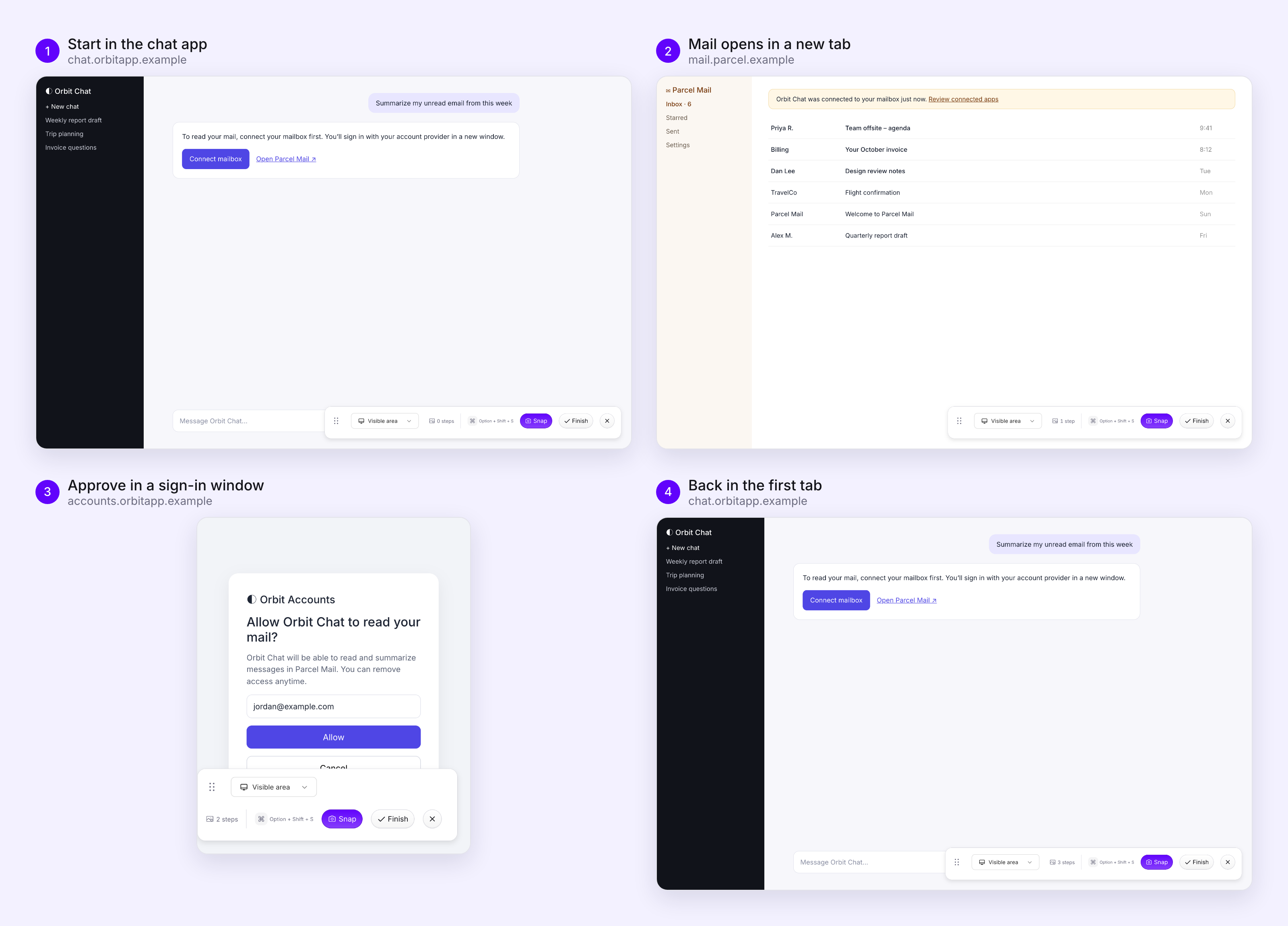
Disclosure: we make Snap, a free Chrome extension. The example sites in this guide are fictional.
Why multi-tab flows are hard to document
- New tabs and windows start empty. Extensions normally act only on the tab where you opened them, so the toolbar is missing exactly when the interesting part starts.
- Sign-in windows close themselves. The approval screen is often gone a second after you click Allow.
- Context disappears. Five screenshots called “Screenshot 14.32.07” do not say which site they came from or what happened in between.
How to capture a flow across tabs with Snap
1. Start the flow where the journey begins
Install Snap from the Chrome Web Store, open the first page, click the Snap icon, name the flow and click Start Snapping. The first time you start a flow, Chrome asks whether Snap may access all sites. Allow it if you want the flow to follow you into new tabs and windows automatically.
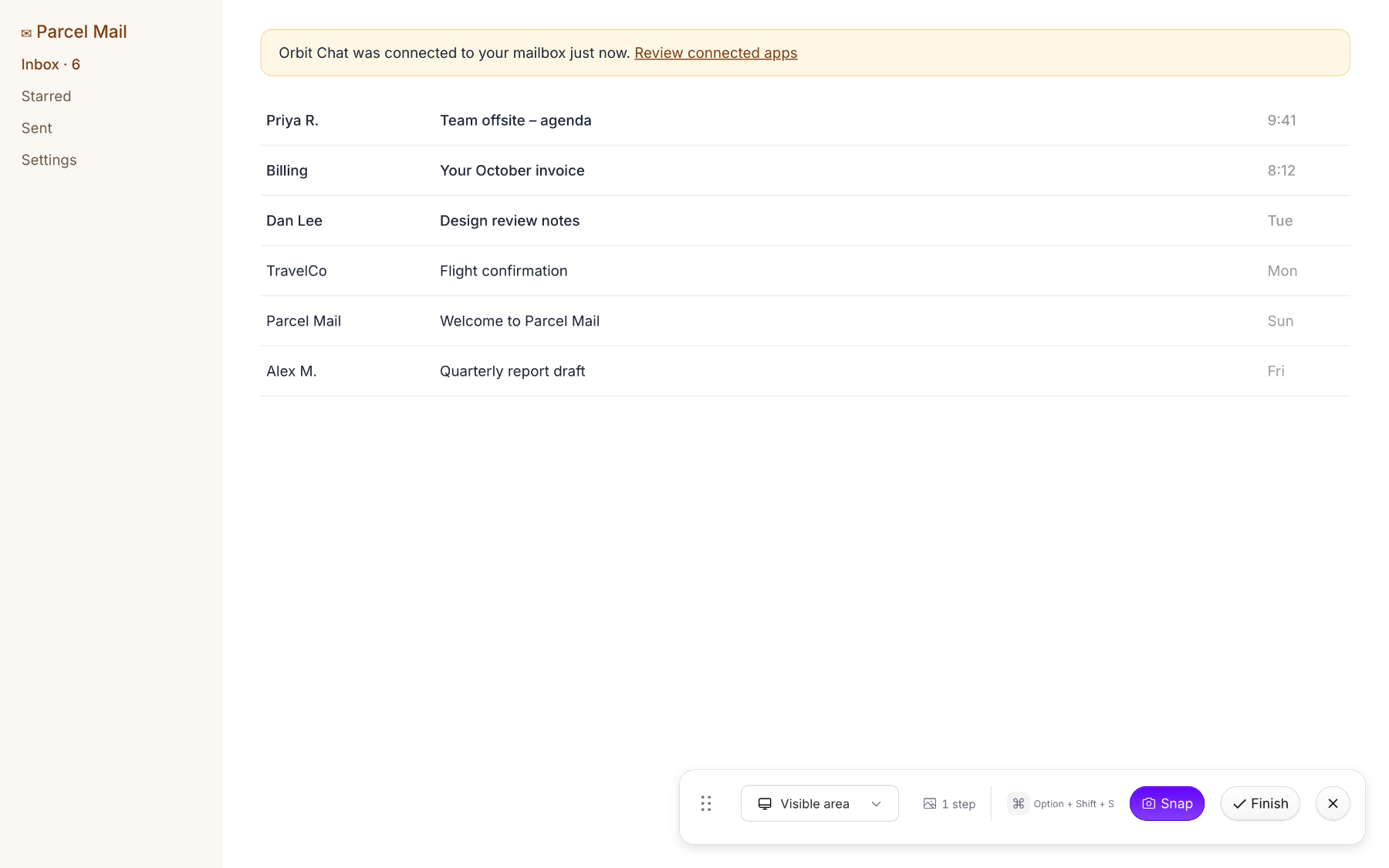
2. Follow the flow into new tabs
When the app opens another tab, switch to it as you normally would. With access allowed, Snap’s toolbar is already there and the flow carries on. Click Snap or press Option+Shift+S (Alt+Shift+S on Windows) to add the screen.
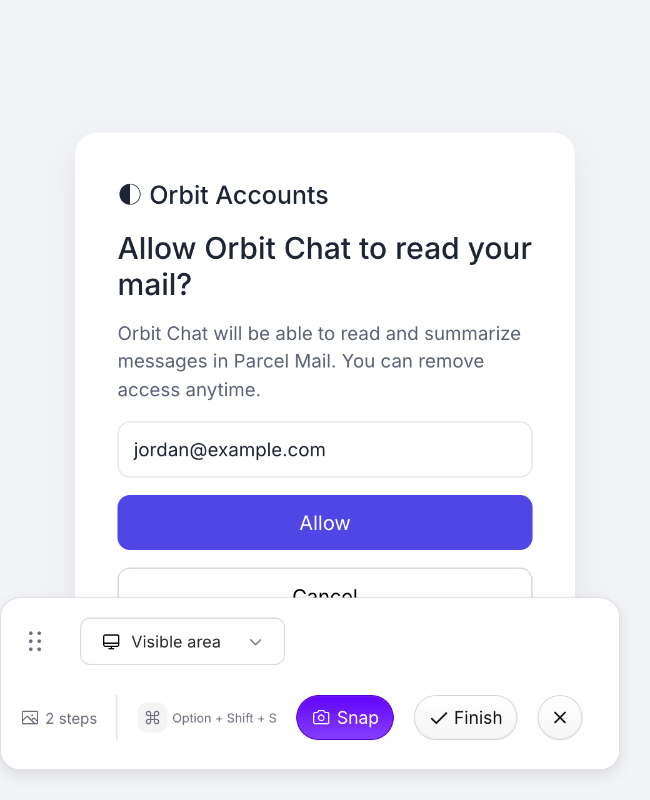
3. Capture the sign-in window
Sign-in and permission prompts usually open in a small separate window. Snap’s toolbar appears there too, so you can capture the approval screen before you click Allow.
4. Return to where you started
When the sign-in window closes, go back to the original tab and keep capturing. The flow continues there, and closing a sign-in window does not end it.
5. Review the whole journey in one place
Click Finish. The editor shows every step in order, whichever tab or window it came from, and each step keeps its own source URL so readers know where it happened.
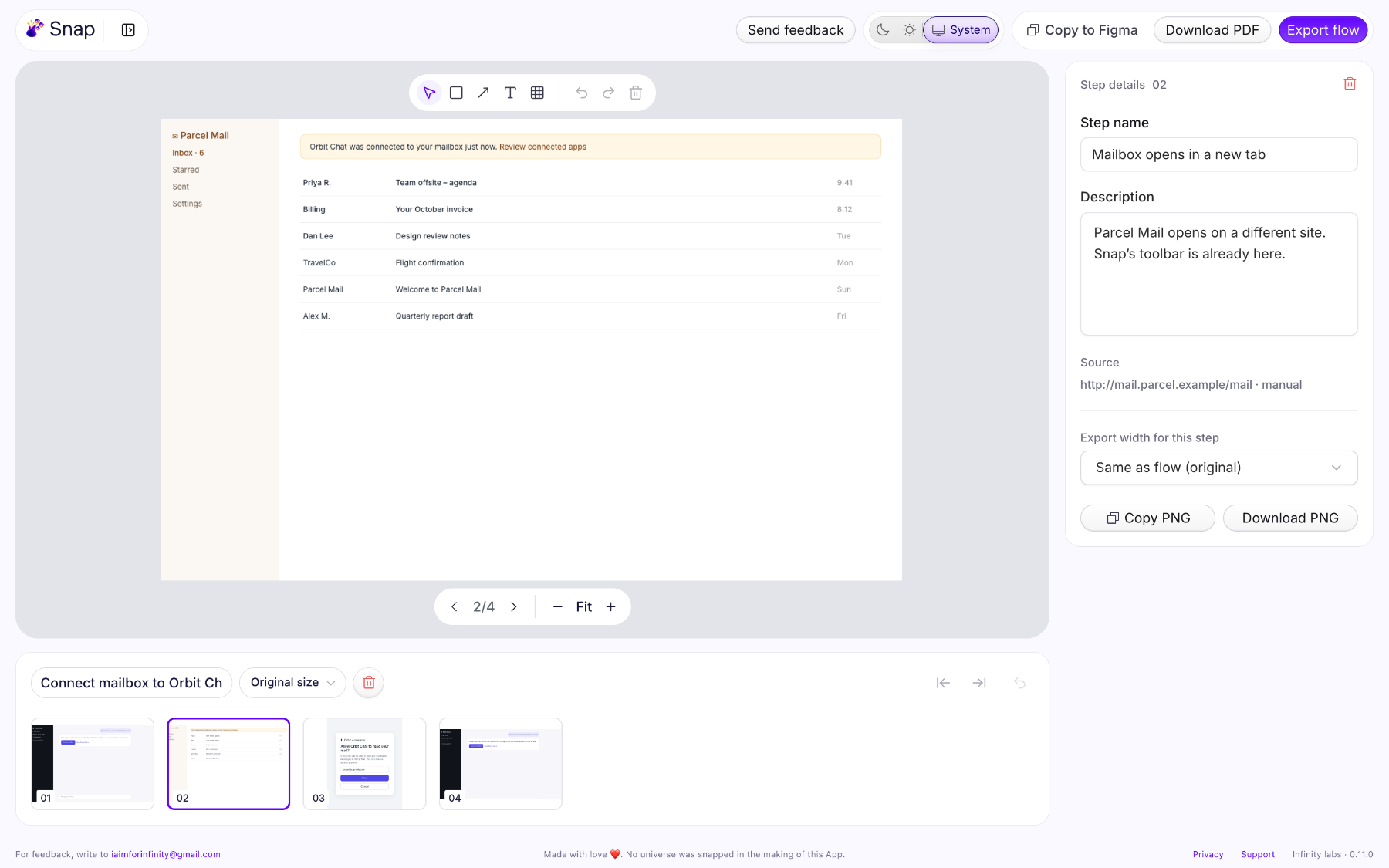
Add a title and one-line description to each step, annotate the buttons that matter, and redact email addresses and account details. Then export the flow as a PDF, a ZIP of images or a Figma paste.
If you prefer not to allow access to all sites
The all-sites permission is optional. Without it, Snap still keeps one flow across tabs; it just needs a click on each new tab:
| Situation | With all-sites access | Without it |
|---|---|---|
| New tab or window | Toolbar appears automatically | Press Option+Shift+S, or open Snap and click Continue flow here |
| Same tab moves to another site | Flow follows automatically | Press the shortcut or open Snap on the new site |
| Back to a tab you used earlier | Toolbar is there | Toolbar is shown again; click Snap to continue |
| Sign-in window closes | Flow continues in your tab | If the flow was on that window, it finishes. Switch back and press the shortcut in your tab before the window closes |
Either way, Snap only takes a screenshot when you click Snap or press the shortcut. It never captures pages on its own, and it does not upload anything. You can change the setting at any time in chrome://extensions, under Snap, Details, Site access.
Tips for clear multi-tab documentation
- Capture the trigger and the result. Snap the button that opens the new tab, then the new tab itself, so readers see the cause and the effect.
- Say where you are. Start descriptions with the site or window: “In the sign-in window, choose the work account.”
- Keep test accounts. Sign-in screens show email addresses; use a test account or redact it.
- Note what you skipped. If a step needs a code from a phone, write that in the description instead of capturing the code.
For flows inside a single product, see how to document product flows with screenshots.
Frequently asked questions
Can I take screenshots across multiple tabs in Chrome as one flow?
Yes. With Snap, start a flow and keep capturing as you switch tabs or windows. All steps stay in one flow, in order, each with its source URL.
Why does Snap ask for access to all sites?
So the toolbar can appear on new tabs, other sites and sign-in windows while a flow is open. It is optional, and Snap still captures only when you click Snap or press the shortcut.
Can Snap capture a sign-in or OAuth pop-up window?
Yes. The toolbar appears in the pop-up window, so you can capture the approval screen before it closes.
Does closing a tab end the flow?
With all-sites access, closing the tab or window the flow is on moves the flow to the tab you are on. Without it, closing that tab finishes the flow, so switch back to your main tab first.
What happens if I decline the all-sites permission?
Snap works tab by tab. On a new tab, press Option+Shift+S (Alt+Shift+S on Windows) or open Snap and click Continue flow here.
Does Snap capture incognito or browser pages?
No. Incognito tabs and browser pages such as chrome:// pages are excluded.
Capture your next multi-tab flow
Install Snap, start a flow, and let it follow you across tabs and sign-in windows.
Add to Chrome, it’s free