Taking a screenshot is easy. Choosing a tool gets harder when you need more than whatever is visible on your screen.
You might need a long landing page, an open menu, five steps of a checkout or one frame from a video. Those are different jobs, even if every extension calls itself a screenshot tool.
This list compares ten Chrome screenshot extensions by what they help you capture and what happens afterward. Start with the quick comparison, then look at the tools that match your task.
Disclosure: We make Snap, which is included here. This is a research-based comparison using official product pages and extension listings, not a hands-on performance test. The recommendations reflect workflow fit, not measured capture speed or image-quality scores. Paid features and plan limits can change.
The quick comparison
| Extension | Useful when you need to… | Main consideration |
|---|---|---|
| GoFullPage | Save an entire scrolling webpage | Check the premium editor if you need markup |
| FireShot | Capture webpages and produce PDF records | Distinguish free features from FireShot Pro |
| Awesome Screenshot | Switch between screenshots and recordings | Check account and plan requirements for your workflow |
| Snap | Keep several browser screenshots together as a flow | Manual capture; desktop Chrome; no cloud workspace |
| Markup Hero | Annotate screenshots and discuss them through shared links | Check sharing permissions and plan limits |
| Lightshot | Grab and mark a selected area | Check the Chrome version separately from the desktop app |
| HTML Elements Screenshot | Capture an individual page element | Rendering can differ from the live page |
| Screenshot YouTube | Save a still frame from a YouTube video | A specialist tool, not a general webpage capture tool |
| ScreenPal | Combine browser communication with a wider capture toolkit | Some screenshot workflows use its desktop tools |
| Screen capture and recorder – Screenshot Tool | Capture, edit and save screenshots in common formats | Confirm the publisher; several extensions have similar names |
1. GoFullPage: for full-page webpage screenshots
GoFullPage focuses on capturing a page beyond the visible browser area. Its official listing includes image and PDF downloads, with additional editing available through its premium offering.
It is a sensible starting point when you want to save a complete landing page or article. If you need to explain several interactive states, plan how you will arrange those separate captures afterward.
Choose it for: a complete page reference.
Check first: whether the editor features you need are included in your chosen plan.
2. FireShot: for webpage-to-PDF work
FireShot offers webpage capture, while its Pro product adds editing, annotations and document-oriented features. The official Pro page describes PDF output with searchable text and links, plus options for capturing tabs and batches.
Consider it when the saved document matters as much as the image, such as keeping webpage records or preparing reference material.
Choose it for: webpage capture with a PDF-focused workflow.
Check first: the free-versus-Pro feature comparison. Do not assume every feature on the Pro page comes with the free extension.
3. Awesome Screenshot: for screenshots and recordings
Awesome Screenshot combines webpage screenshots, annotation and screen recording. Its official site also describes sharing and connections to work tools.
This makes it worth considering when a static image handles some questions, but a recording is better for others. A screenshot can show a broken state; a recording can show the interaction that produced it.
Choose it for: a mix of image-based feedback and video explanations.
Check first: the current plan and account requirements for recording, storage and sharing.
4. Snap: for multiple screenshots that belong together
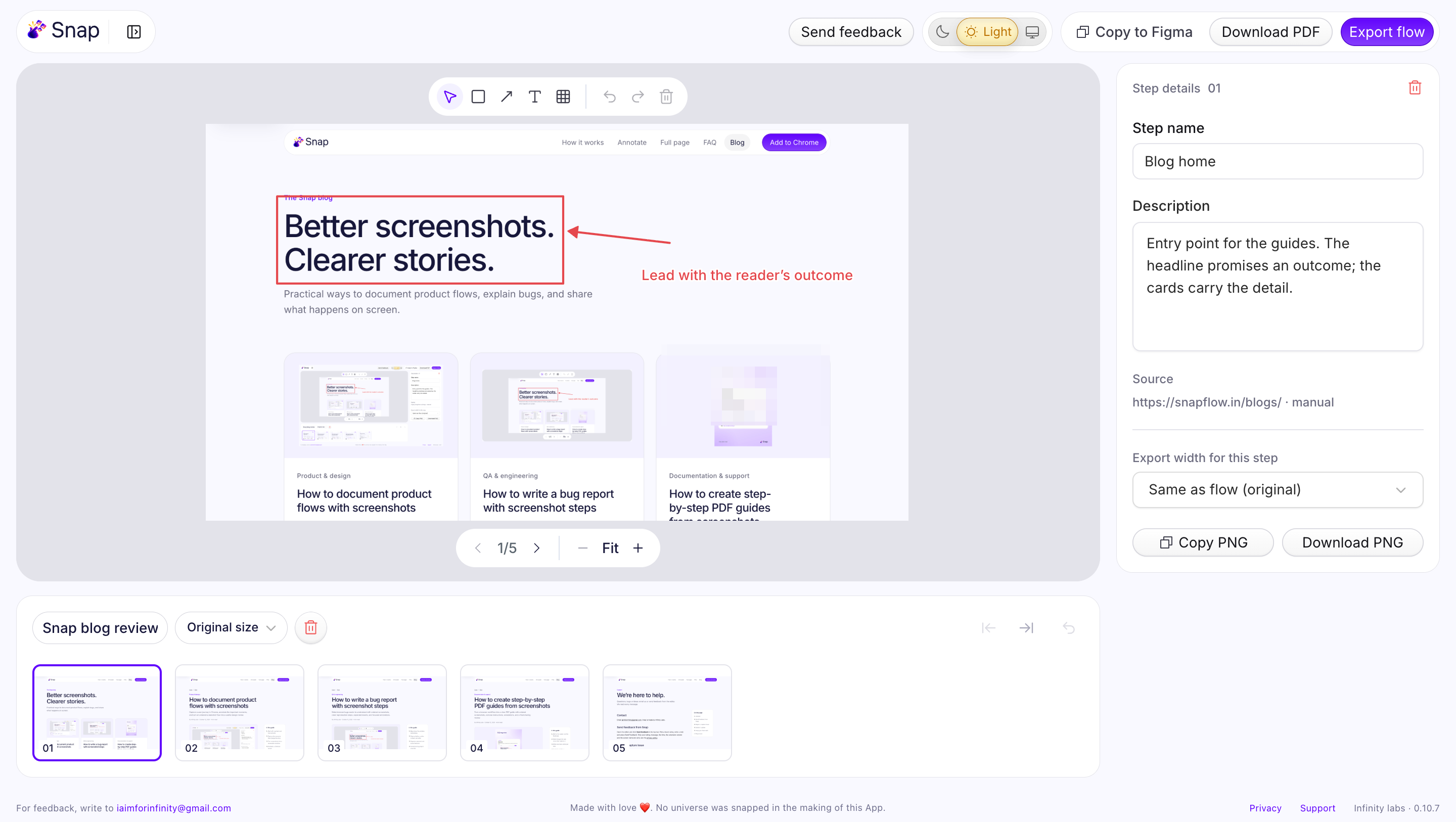
Snap groups browser captures into an ordered flow. You choose each capture as you move through a task, then rename steps, reorder them, add notes, annotate or redact.
For example, you can keep a search query, its results, an applied filter and an empty state together. The flow can be exported as PDF or ZIP, or copied into Figma as numbered, labeled screenshot frames.
Choose it for: product research, browser walkthroughs and multi-step feedback.
Check first: Snap uses manual capture and local storage. It has no video recording or hosted team workspace. Export important work before removing the extension or clearing browser data.
5. Markup Hero: for annotation and shared feedback
Markup Hero's Chrome extension supports scrolling, selected-area and visible-tab captures. Its official documentation also describes annotations, shared links, multi-page markups and image/PDF exports.
It is worth considering when the conversation around an image matters: a client marking a change, a teammate adding context or a reviewer returning to the same markup.
Choose it for: annotated screenshots shared for discussion.
Check first: the permissions and plan needed for your intended sharing and collaboration setup.
6. Lightshot: for selected-area captures
Lightshot is built around selecting an area, editing the capture and saving or sharing it. Its official site links to Chrome as well as desktop versions.
Consider it for a small piece of a page: a confusing label, an error message or one control you need to discuss.
Choose it for: straightforward region capture.
Check first: the Chrome listing rather than assuming the desktop app's behavior applies to the extension. Check sharing settings before uploading an image containing private information.
7. HTML Elements Screenshot: for individual components
HTML Elements Screenshot lets you select a page element and generate an image using html2canvas. Its listing describes adjustable output resolution and notes that cross-domain images are excluded by default.
That approach can help when you want a card or section without manually drawing a crop. Because it renders the element, inspect the result for missing images or visual differences.
Choose it for: isolated interface elements.
Check first: whether the generated image accurately represents the live component.
View HTML Elements Screenshot.
8. Screenshot YouTube: for video stills
Screenshot YouTube adds a screenshot button to the YouTube player. Its listing describes saving the current video frame, copying it to the clipboard, or both.
This is a narrow tool for a narrow task. It belongs on your shortlist if you regularly collect visual references from videos, rather than capture webpages.
Choose it for: a still frame from a YouTube video.
Check first: that this specialist function matches your need. It does not replace a general screenshot editor, and capturing a frame does not grant permission to republish it.
9. ScreenPal: for a wider screen-communication workflow
ScreenPal offers a Chrome extension alongside desktop capture and editing tools. Its extension listing describes browser recording and launching desktop tools, including a screenshot tool and image editor.
Consider it if screenshots sit inside a broader routine of recording, editing and explaining. It is a different proposition from installing a small extension only to save webpage images.
Choose it for: working across screenshots, recordings and related tools.
Check first: which functions run directly in the extension and which require the desktop app or a particular plan.
10. Screen capture and recorder – Screenshot Tool: for capture and editing
This extension's listing describes full-page, selected-area and visible-area screenshots, editing, PDF/JPEG/PNG output, and Google Drive or link sharing. It also includes recording features.
It is another option if you want capture and basic editing in the same extension. The name is generic, so use the exact listing below to identify the product.
Choose it for: a combination of capture modes and common export formats.
Check first: the current permissions, publisher and sharing behavior before using it for work material.
View the exact Chrome listing.
How to choose a Chrome screenshot extension
Ask three questions before installing anything:
- What am I capturing? One area, a long page, several states or a video frame?
- What will I do with it? Save a reference, annotate feedback, create a document or discuss it with others?
- Where should it live? On your device, in a design file or behind a shared link?
For a long page, start by comparing GoFullPage and FireShot. For image-based discussion, look at Markup Hero. For a sequence you want to inspect in Figma or share as a document, consider Snap. If you need both images and recordings, compare the broader capture suites.
You may find that your existing screenshot shortcut is enough. An extension earns its place when it removes a recurring step after capture.
Frequently asked questions
Can a full-page screenshot capture a whole product flow?
A full-page screenshot captures the length of a page in one state. A product flow may include several pages, open menus and validation states, so it usually needs multiple captures.
Which tool should I use for screenshots I want to bring into Figma?
You can import saved image files into Figma. If you want a browser sequence copied as numbered screenshot frames, Snap offers a dedicated Copy to Figma workflow. The images do not become editable website components.
Do I need a screenshot extension for one quick image?
Often, your computer's built-in capture tool is enough. Compare extensions when you regularly need scrolling capture, annotations, organized sequences or specialized exports.
Working with several screenshots? Try Snap to keep the sequence together from capture to export.