You are reviewing a search flow. The first screenshot shows the query. The second shows a filter. The third shows that applying the filter removes every result.
Individually, they look like three ordinary screenshots. Together, they explain the design problem.
That is why choosing a screenshot tool for UX work takes more than checking whether it can capture a screen. You need to consider research, inspection, feedback and what the team receives at the end.
Here are seven tools for different parts of that work, including browser extensions and desktop apps.
Disclosure: We make Snap. This comparison uses official product information rather than a hands-on benchmark. “Best for” describes our editorial assessment of a tool's fit for a particular job. Check current licensing and plan details before purchasing.
Match the tool to the design job
| Tool | Platform | Design job to consider it for |
|---|---|---|
| Snap | Desktop Chrome extension | Capturing browser flows for research and Figma reviews |
| Shottr | macOS | Measuring and inspecting interface details |
| CleanShot X | macOS | Everyday capture across browser and desktop work |
| ShareX | Windows | Configuring repeatable capture and file-handling routines |
| Snagit | Windows and macOS | Creating annotated documentation and guides |
| GoFullPage | Chrome extension | Collecting complete webpage references |
| Markup Hero | Chrome extension and web tools | Discussing annotated screenshots with other people |
1. Snap: for UX research across several screens
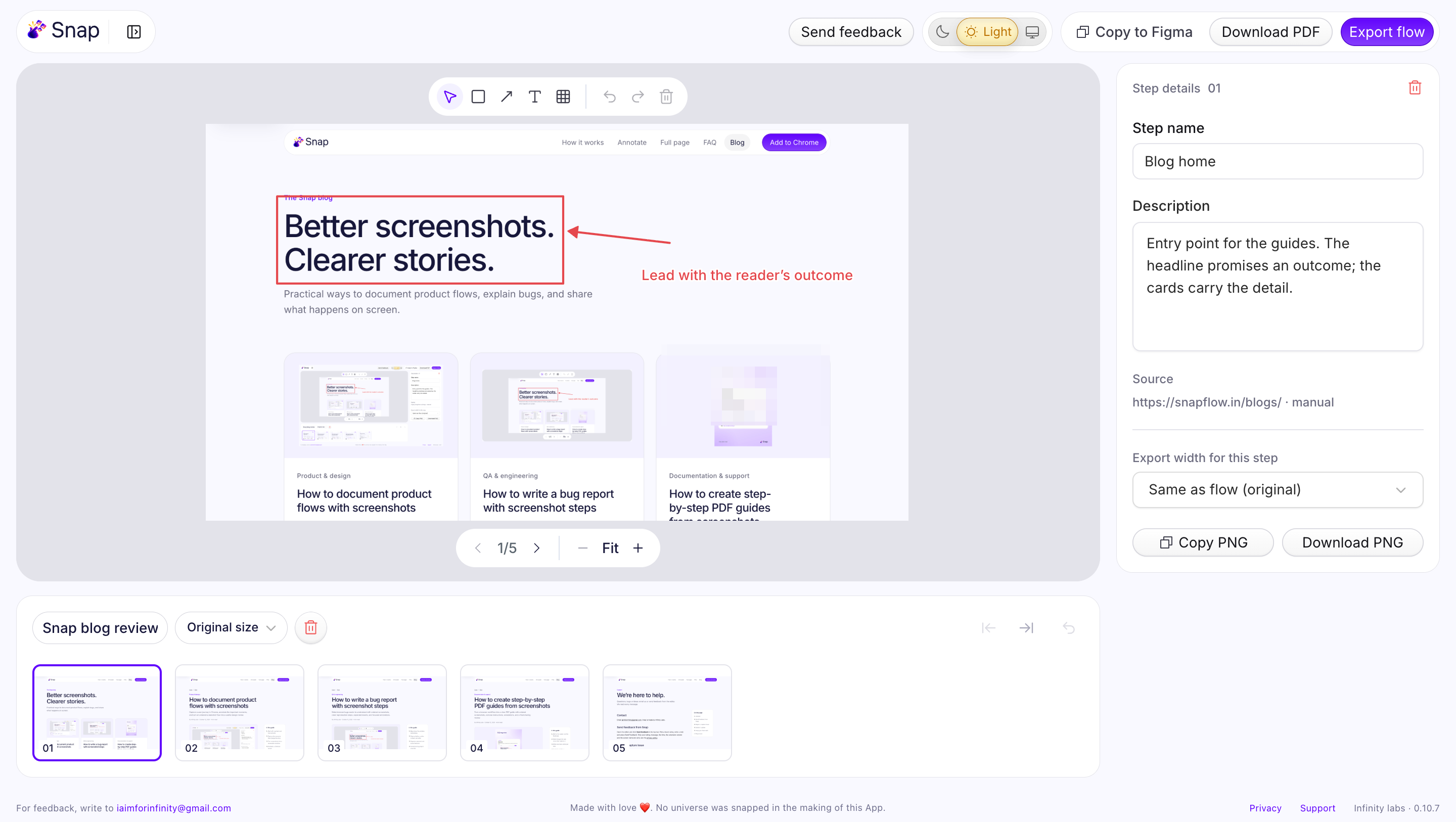
Snap keeps manually selected browser captures in an ordered flow, with step names, notes and source URLs. You can add annotations and export the sequence to Figma, PDF or ZIP.
A useful design task: compare how a product handles a search query, filters, zero results and recovery. Keep each state beside the one that led to it.
Tradeoff: it captures browser screenshots, not native desktop apps. It also does not infer a flow diagram, record interactions or reconstruct editable UI components.
2. Shottr: for inspecting UI details on a Mac
Shottr includes tools for measuring distances, magnifying pixels, picking colors and overlaying images. Those features make it worth considering for focused UI inspection.
A useful design task: investigate why two elements look misaligned, or overlay screenshots to make a visible difference easier to explain.
Tradeoff: it is a Mac app, and image measurements still need interpretation. Browser zoom and display scaling affect what a screenshot represents. Confirm the intended value against the specification or implementation before filing a precise spacing issue.
3. CleanShot X: for everyday Mac capture
CleanShot X combines screenshot tools with features such as scrolling capture, annotation, capture history and pinned images. Its wider offering includes recording and cloud sharing.
A useful design task: keep a reference image visible while checking an implementation, then capture and annotate the detail you want to discuss.
Tradeoff: it is designed for macOS. Compare the license and cloud options against your needs rather than assuming every sharing feature is part of the same purchase.
4. ShareX: for configurable Windows workflows
ShareX is a free, open-source Windows capture tool. It offers several capture methods, editing, automated after-capture tasks and configurable destinations.
A useful design task: set up a repeatable capture routine that saves review images consistently, instead of choosing the same options after every capture.
Tradeoff: customization requires decisions about tasks, hotkeys and destinations. Check the configured after-capture actions so a screenshot goes only where you intend it to.
5. Snagit: for documentation and visual explanations
Snagit combines screen capture, annotation and guide-creation tools. Its official feature set includes scrolling capture and step capture.
A useful design task: turn a feature's setup process into visual instructions for support, customers or an internal handoff.
Tradeoff: this is a broader desktop product with paid licensing. It is worth comparing when you create documentation regularly; a smaller tool may cover occasional reference captures.
6. GoFullPage: for complete page references
GoFullPage captures a scrolling webpage and supports image or PDF downloads. It is a focused option for collecting complete landing-page, pricing-page or article layouts.
A useful design task: compare where several pricing pages place plan details, FAQs and purchase prompts across the full page.
Tradeoff: a long image can make small UI details difficult to inspect at overview scale. Capture a closer view when a particular interaction or label matters, and check the premium editor if you need annotation.
7. Markup Hero: for feedback attached to an image
Markup Hero combines screenshot capture with annotation and link-based sharing. Its tools also support multi-page markups and collaboration.
A useful design task: share marked-up interface feedback with someone who needs to add context or return to the same visual discussion.
Tradeoff: shared feedback needs appropriate access settings. Confirm the permissions and plan required for the people who will review the work.
Choose around the handoff
Think about the next person who needs to use your screenshot.
If a developer needs to locate a visual discrepancy, a focused image with a precise note may be enough. If a product team needs to understand an experience, the sequence matters. If support needs a reusable guide, the structure and instructions matter as much as the image quality.
You may need one everyday capture app and one specialist workflow. There is little value in replacing a tool you already use well unless the replacement solves a recurring problem.
A practical screenshot checklist for UX work
Before sharing your captures:
- State the task, screen or question being reviewed.
- Keep browser size and zoom consistent when comparing layouts.
- Capture the relevant interaction state, including errors where needed.
- Separate what you observed from the change you recommend.
- Add the date, source and account conditions when they affect the evidence.
- Check sensitive details and review the final export.
A screenshot shows what appeared on your screen. It does not, by itself, prove that customers understand the interface or that a design improves conversion. Use it to support a clear question, then choose the research or testing needed to answer that question.
Frequently asked questions
Which screenshot tool works with Figma?
Saved screenshot files can be imported into Figma. Snap also lets you copy a browser flow and paste it as numbered, labeled screenshot frames. That is useful for visual research; it does not turn the captures into editable UI designs.
Should UX designers use screenshots or recordings?
Use screenshots when reviewers need to inspect specific states side by side. Use a recording when timing, motion or the transition between states is central to the question.
Can screenshots replace usability testing?
No. They document visible states and help teams discuss an experience. They do not show how representative users understand or complete the task unless you collect that evidence through research.
Collecting browser research? Try Snap to keep the screens, their order and your notes together.
Related reading: How to document product flows with screenshots.