

A screenshot of a checkout page can show the delivery options. It cannot also show what happened after someone selected express delivery—unless you capture that state too.
That is the difference between a full-page screenshot and a screenshot flow. A full-page screenshot shows the length of a page in one captured state. A screenshot flow shows a sequence of states as someone uses a website.
Both are useful. The right choice depends on what you want the next person to understand: the page’s layout or the interaction that changes it.
The quick answer
| What you need to show | Start with | Why |
|---|---|---|
| The sections of a landing page | Full-page screenshot | The reader can inspect the page from top to bottom. |
| A form before and after validation | Screenshot flow | The error is a different state from the untouched form. |
| A pricing page’s overall structure | Full-page screenshot | Plans, comparisons and FAQs belong to one page reference. |
| Switching from monthly to annual pricing | Screenshot flow | Separate captures preserve both versions for comparison. |
| Several screens in a checkout | Screenshot flow | The reader needs the order and the result of each action. |
A flow can contain a full-page capture. You do not have to choose one capture mode for every step.
What a full-page screenshot tells you
A full-page screenshot captures content beyond the visible browser viewport. It is useful when the page itself is the reference: its section order, copy, visual hierarchy or overall length.
For example, a landing-page review may need to show the hero, product explanation, testimonials and final call to action together. A full-page image lets the reviewer look at how those sections fit together.
What it does not preserve is an interaction history. If you open a menu before taking the screenshot, you capture the open menu. The image does not also contain the earlier closed state or the later destination.
For capturing a long page in Snap, see the full-page screenshot feature. If content is missing or a header repeats, use the full-page troubleshooting guide.
What a screenshot flow tells you
A screenshot flow is a set of captures arranged in a meaningful order. Each step preserves a state you want the reader to see.
The steps might come from different URLs. They can also come from one page: a selector opens, an option changes and a summary updates. The address bar staying the same does not mean nothing happened.
A useful flow gives the reader three things:
- Sequence: what happened first and what followed.
- Labels: what each screenshot represents.
- Context: where to look and why the change matters.
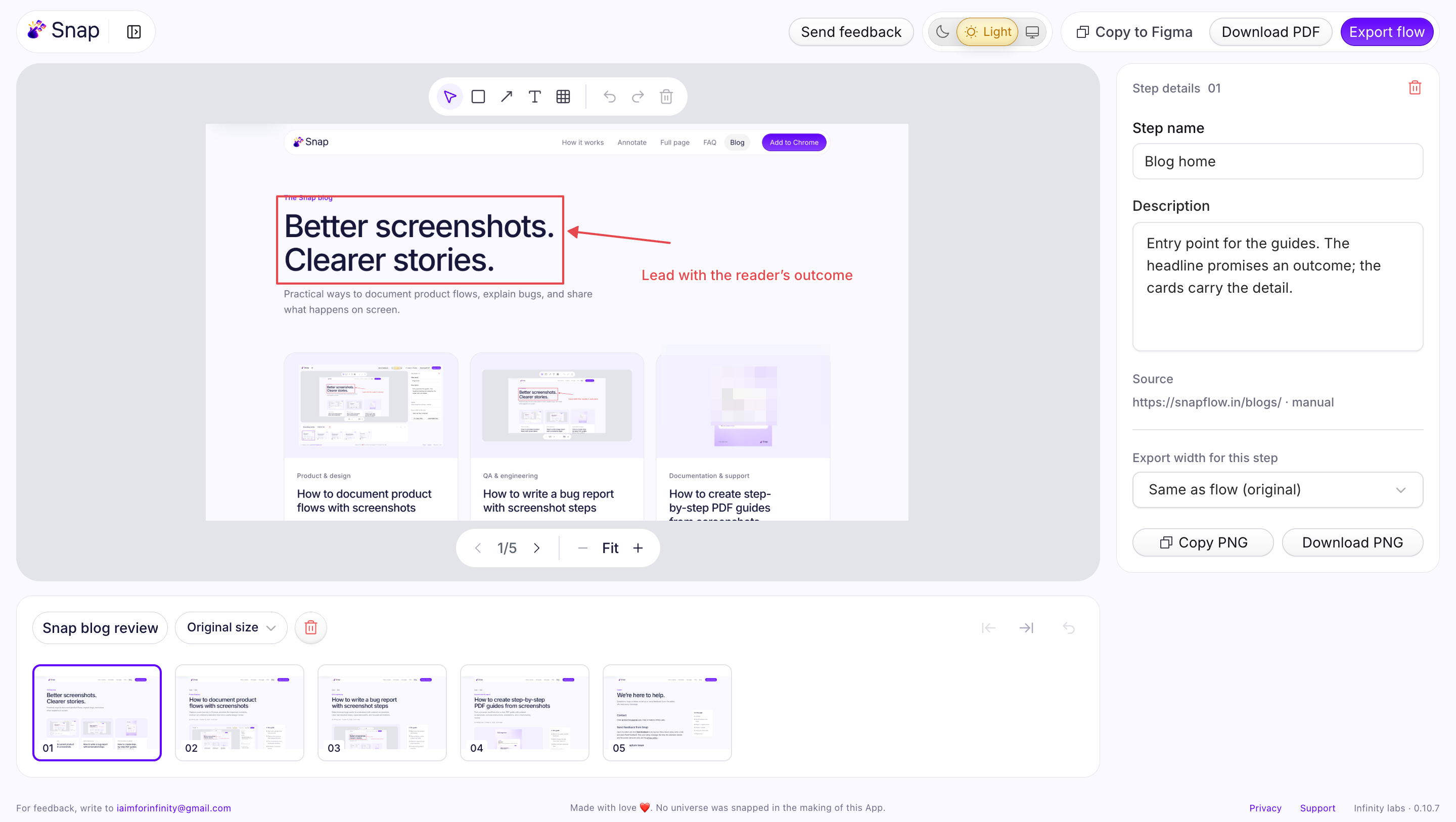
Snap keeps those captures together while you reorder steps, name them and add annotations. You can then export the reference as a PDF, bring it into Figma or download the captures through Export flow.

Example: reviewing a delivery selection
Suppose a teammate asks, “Is it clear how express delivery changes the total?”
A full-page checkout screenshot can show the selected option and the final price. But the teammate still has to guess what the earlier price was and when it changed.
A three-step flow makes the comparison explicit:
- Standard delivery selected: capture the initial delivery charge and order total.
- Express delivery selected: capture the changed selection and any immediate price feedback.
- Order summary reviewed: capture the final breakdown before confirmation.
These are example step names, not a claim that every checkout behaves this way. Capture the actual states of the product you are reviewing.
Keep the basket and browser width consistent. If the basket changes between captures, the reader cannot tell whether delivery or another item changed the total.
Add one annotation around the relevant price, with a short observation such as “Total updates after selecting delivery.” If the total does not update, document that instead. The screenshots should support the observation.
Capture enough context without collecting every click
A flow is useful because its steps are selected. Twenty near-identical screenshots can make a simple interaction harder to understand.
Before taking a capture, ask: would removing this image make the change harder to follow?
Keep the starting state when it provides a comparison. Keep the state where the user makes a decision. Keep the result when it shows whether the action worked. Remove loading frames and accidental duplicates unless they are the subject of the review.
Choose a visible-area capture when the surrounding interface matters. Use a selected region when the question concerns a small part of the screen. Use full page when the reviewer needs the complete layout of a particular step.
Organize the flow before exporting it
In Snap, start a named flow, move through the interaction and capture the states you need. After finishing, review the thumbnails in the editor.
Put the captures in reading order and name each step by its state or outcome. “Plan comparison opened” gives the reader more information than “Screen 03.” Use arrows, rectangles or text annotations only where the relevant detail is difficult to locate.
Choose the output according to where the discussion will happen:
| Destination | Useful output |
|---|---|
| A document someone can read through | |
| A design file with room for exploration beside the reference | Copy to Figma |
| A task or folder that needs the individual image files | Export flow |
For the Figma workflow and exactly what transfers, read how to bring website screenshots into Figma as an organized flow. For document delivery, see creating step-by-step PDF guides.
When screenshots are not enough
A sequence preserves selected moments. It does not show everything that happened between them.
If the issue depends on animation timing, a flicker, audio or the motion of a drag gesture, a screen recording may communicate it better. Snap’s screenshot flow is suited to states you can inspect, compare and label.
Likewise, a very long screenshot may technically contain all the page content but be difficult to read when reduced to fit a document. Check the output at the size your audience will actually use.
Frequently asked questions
Is a screenshot flow the same as a scrolling screenshot?
No. A scrolling or full-page screenshot captures a long page. A screenshot flow combines separate captures in an order that explains a journey or a set of changes.
Can I include full-page screenshots in a flow?
Yes. A full-page capture can serve as one step, alongside visible-area or selected-area captures. Use the mode that gives each step enough context.
Do the screenshots need to come from different pages?
No. Several states of the same page can form a flow. Examples include switching a pricing option, opening a menu or submitting a form that displays an error.
Choose the question before the capture mode
For “What is on this page?”, start with a full-page screenshot. For “What happens when someone uses it?”, capture the meaningful states in a flow.
Add Snap to Chrome and try a short interaction: capture the starting state, the change and the result, then put them in order for your next review.