

A software training manual teaches people how to use a tool for their job: your CRM, your admin console, your billing system or the product you sell. It is usually the first thing a new hire, a customer’s admin or a temporary contractor opens, and the thing they come back to when they forget a task.
The manuals people actually use share three traits. They are organised by task, not by menu. Each task is a short sequence of screenshots with one instruction per step. And they are easy to update when the software changes.
This guide walks through planning, structure, capture and upkeep, with a sample chapter PDF you can download to see the finished format.
Training manual, SOP or quick guide?
These documents overlap, and choosing the right one keeps each of them short.
| Training manual | SOP | Quick guide | |
|---|---|---|---|
| Answers | How do I use this tool for my job? | How do we do this one task, the approved way? | How do I do this one thing quickly? |
| Scope | Many tasks, grouped by role | One task, with rules and owners | One task |
| Reader | New users learning the tool | Anyone doing the task, including auditors | Users who already know the tool |
| Length | Several chapters | 1–3 pages | One page |
In practice, a manual often links to the SOPs for its riskier tasks. If you need one of those, see how to create an SOP with screenshots.
Plan the manual by role and task
Before capturing anything, list who will read the manual and what they need to do in their first weeks. A support agent, a team admin and a finance user open the same software for very different reasons.
- List the roles. Write down each type of reader, such as “support agent” or “workspace admin”.
- List the tasks for each role. Ask a few experienced users what they do daily, weekly and rarely. Their answers are your chapter list.
- Order the tasks by when they are needed. Sign-in and set-up first, daily tasks next, rare and advanced tasks last.
- Mark the risky tasks. Deleting data, changing permissions and issuing money need extra warnings, or a link to an SOP.
A training manual structure that works

- Overview. What the software is for, which parts each role uses and where to get help.
- Getting set up. Signing in, permissions, profile and notification settings.
- Core tasks, one chapter each. “Invite a team member”, “Create an order”, “Export a report”. Each chapter has a one-line goal, any prerequisites, numbered steps with screenshots, and the expected result.
- Troubleshooting. The errors people actually hit, what they mean and who to contact.
- Glossary. The product’s own terms in plain language.
Use this outline for each task chapter:
Chapter [n]: [Task, starting with a verb]
Who this is for: [Role]       Time needed: [x minutes]
Before you start: [Access, data or settings required]

[n].1  [First action]       → screenshot, target highlighted
[n].2  [Next action]        → screenshot
...
Result: [What the user should see when it worked]
If something goes wrong: [Common problem → fix or contact]
Capture each chapter as a screenshot flow
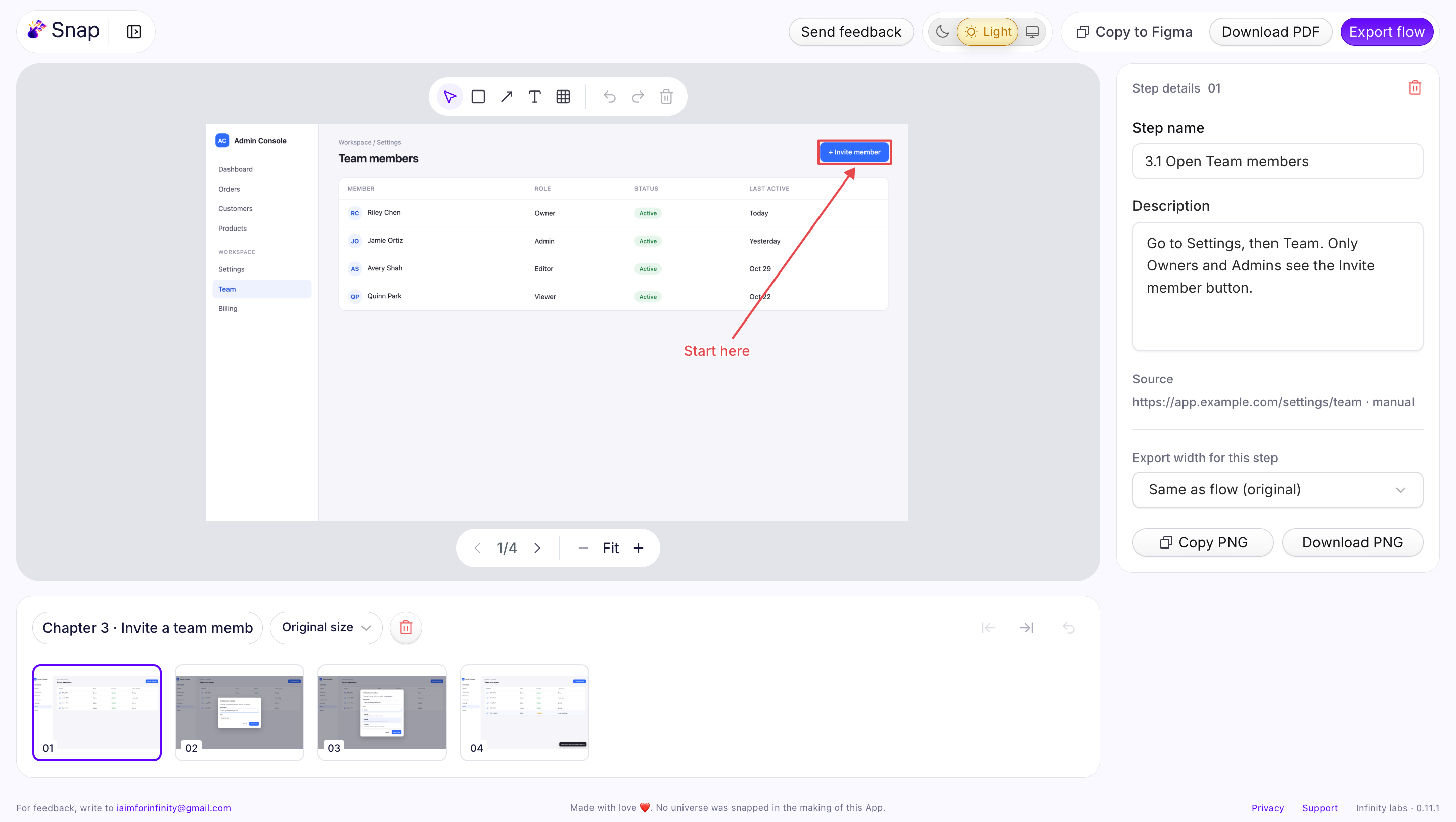
Treat every task chapter as one flow: you do the task once, capture each screen where the reader has to act, then write the instructions on top. With Snap, our free Chrome extension, that looks like this:
- Use a demo or training account with realistic but fake data. It keeps customer data out of the manual and makes screenshots consistent.
- Start a new flow named after the chapter, such as “Chapter 3 · Invite a team member”.
- Do the task and press Snap on each screen where the reader has to click, type or check something. The shortcut is Alt+Shift+S (Option+Shift+S on a Mac).
- Number the step titles to match the chapter, like “3.1 Open Team members”, and put the detail in each step’s note.
- Highlight one target per step with a rectangle, and add a short label only where the target is easy to miss.
- Export the chapter as a PDF, one step per page, or as a ZIP of numbered PNGs if the manual lives in a wiki or learning platform.
Snap captures web pages in Chrome on desktop. If part of your manual covers a desktop or mobile app, capture those screens with your operating system’s screenshot tool and add them alongside.
Combine the chapters into one manual
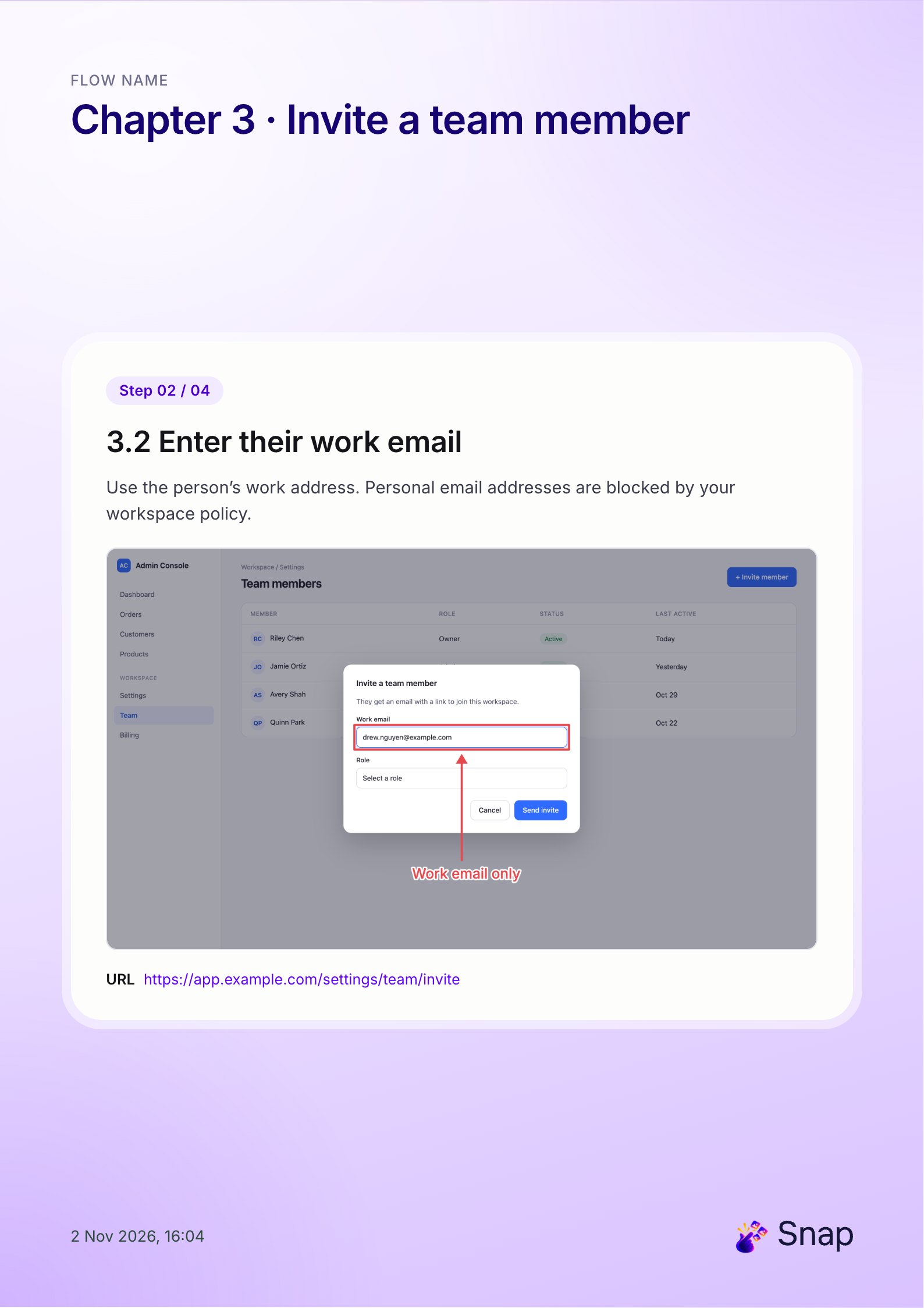
Each chapter exports as its own PDF, which is useful on its own: you can send just “Chapter 3” to someone who only needs that task. For a single manual, add a cover page and contents page, then merge the chapter PDFs in order. On a Mac, Preview can do this by dragging page thumbnails between files. On Windows or Linux, any PDF merging tool will work.
If your manual lives in a wiki, a help centre or a learning management system, use the ZIP export and place the numbered images under each step instead. The steps stay in the same order because the files are numbered.
Make it easy to scan
- Start every step with a verb: “Click”, “Choose”, “Enter”, “Check”.
- Name controls exactly as they appear on screen, including capitals, and make them bold in the text.
- Keep one action per step. If a step has “and then”, split it.
- Show the result at the end of each chapter so readers know they finished correctly.
- Warn before risky actions, not after them.
See a sample chapter
We captured “Chapter 3 · Invite a team member” in a demo admin console with Snap: four steps, numbered titles, notes, one highlight per step and a short label on each. Download the sample chapter PDF (4 pages, 1.9 MB).
Keep the manual current
Software changes faster than manuals. Plan for that from the start:
- Give each chapter an owner and a “last checked” date.
- Watch release notes and list the chapters each release affects.
- Recapture whole chapters, not single screenshots. Running through a task again takes minutes and catches small changes you would otherwise miss.
- Ask new hires to flag confusing steps during their first week. They are the best testers you have.
Frequently asked questions
What should a software training manual include?
An overview, a set-up chapter, one chapter for each core task with numbered screenshot steps, a troubleshooting section and a glossary. Organise chapters by role and by when each task is needed.
What is the difference between a training manual and an SOP?
A training manual teaches someone to use a tool across many tasks. An SOP defines the approved way to do one task, with owners and a revision history. Manuals often link to SOPs for risky tasks.
How long should a training manual be?
As long as the tasks require, but each chapter should be short: usually 4 to 12 steps. If a chapter grows longer, split it into two tasks.
Can I create a training manual for free?
Yes. Snap is a free Chrome extension with no account that captures each step, adds titles, notes and highlights, and exports PDFs or numbered images. You write the instructions yourself, and it covers web apps in Chrome rather than desktop software.
How do I combine several chapters into one PDF?
Export each chapter as a PDF, then merge them in order with a PDF tool. On a Mac, Preview can merge files by dragging page thumbnails between documents.
How often should a training manual be updated?
Check the affected chapters with every significant software release, and review the whole manual at least once a year.
Capture your first chapter today
Install Snap, run through one task and export it as a chapter PDF with titles, notes and highlights. Free, with no account, and your screenshots stay on your device.
Add to Chrome, it’s free