

Scribe turns the clicks you make into a written how-to guide, hosted in your Scribe workspace. For teams that want an automatic, shareable knowledge base, that is exactly the point.
People usually start looking for a Scribe alternative for one of three reasons: they do not want another account, they would rather not store screenshots of internal tools in someone else’s cloud, or they need something the free plan does not include, such as PDF export or screenshot redaction.
The short answer: if you want automatic step text and guides shared as live links, Scribe is hard to beat. If you want a free, local tool that captures the screens you choose and exports them as a PDF, a ZIP of images or a Figma paste, Snap is a lighter alternative.
Disclosure: we make Snap. Scribe details below come from Scribe’s pricing page, checked on October 23, 2026. Plans change, so confirm the current terms before you decide.
Scribe vs Snap at a glance
| Scribe | Snap | |
|---|---|---|
| Cost to start | Free Basic plan; paid plans priced per seat | Free |
| Account | Sign-up required | None |
| Where guides are stored | In your Scribe workspace | In your Chrome profile, encrypted on your device |
| How steps are captured | Records your clicks and turns them into steps | You click Snap on each screen worth keeping |
| Written step text | Generated for you | You add titles and notes |
| Capture types | Web apps on the free plan; desktop and mobile on paid plans | Visible area, selected area or full page in Chrome |
| Export | PDF, HTML and Markdown on paid plans | PDF, ZIP of PNGs, single PNG, Copy to Figma |
| Redaction | Screenshot editing and redaction on paid plans | Pixelate areas in the editor, free |
| Sharing | Link and embed | Share the exported file |
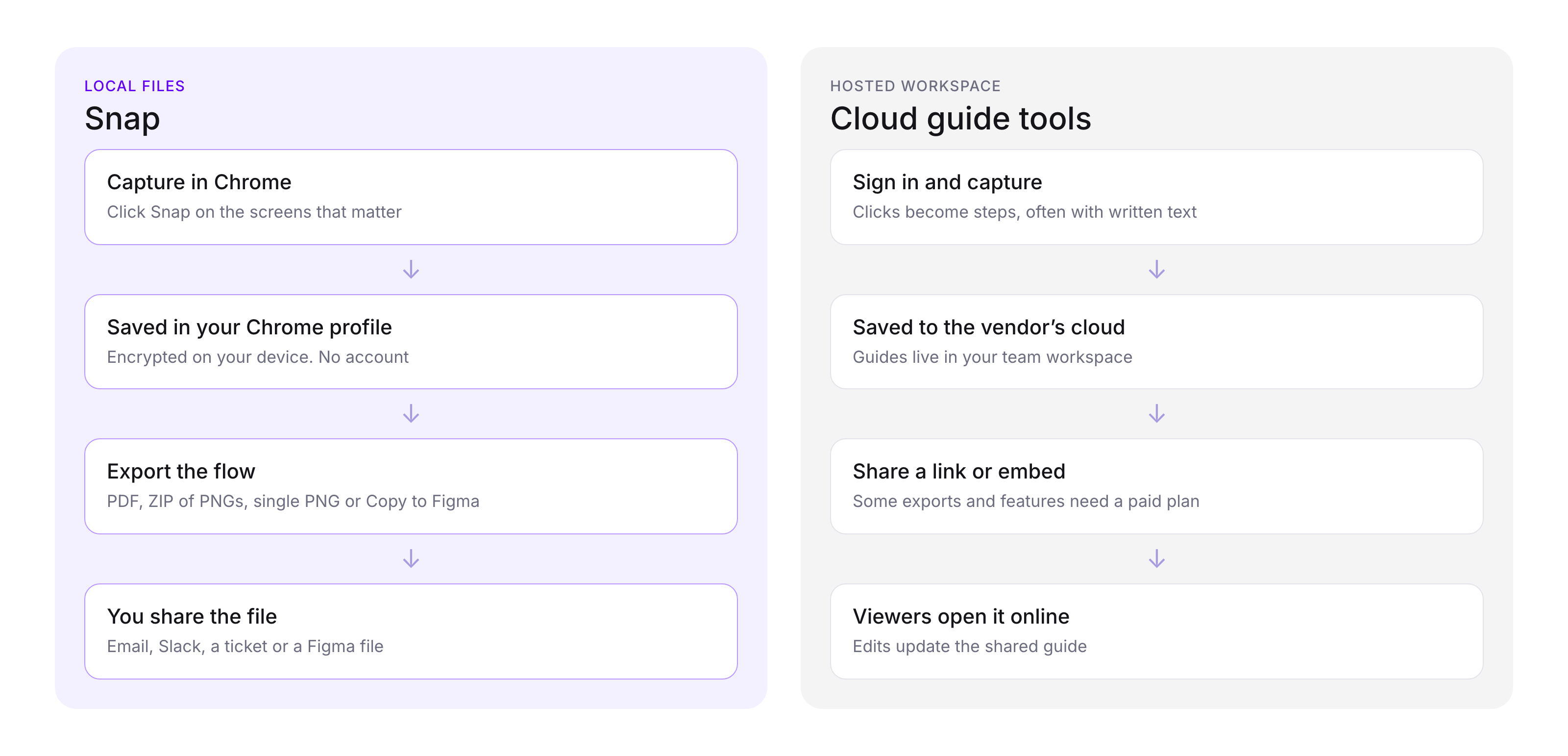
When Scribe is the better choice
Be honest about what you need. Scribe is the stronger option when:
- You want the writing done for you. Scribe drafts the step text from your clicks. Snap does not write instructions; you name each step yourself.
- Guides should live as links. A hosted guide can be updated after you share it, and embedded in a help center or wiki.
- You document desktop software. Snap captures web pages in Chrome only. Scribe’s paid plans also cover desktop and mobile apps.
- Your team needs shared workspaces, comments, branding or enterprise controls such as automatic PII redaction.
When Snap is the better choice
- You do not want an account. Install Snap, name a flow and start capturing. There is nothing to sign up for.
- Your screenshots should stay with you. Snap saves flows in your Chrome profile and encrypts the screenshots there. It does not upload them, and there is no Snap cloud. See the privacy policy for details.
- You need exports without a paid plan. PDF, a ZIP of numbered PNGs with your notes, a single PNG, or a paste straight into Figma are all included.
- You choose what becomes a step. Snap never captures automatically, so hover states, menus and error messages are captured exactly when you want them.
- You need the whole page. Full-page capture stitches a long page into one image, and area capture keeps a step focused on one detail.
- Some details must be hidden. Boxes, arrows, text and pixelation are built into the editor.
How to make a step-by-step guide with Snap
- Install Snap from the Chrome Web Store and open the web app you want to document.
- Name the flow after the task, such as “Invite a teammate”, then click Start Snapping.
- Snap each screen that matters. Use the floating toolbar or Option+Shift+S (Alt+Shift+S on Windows). Switch to area or full-page capture when a step needs it.
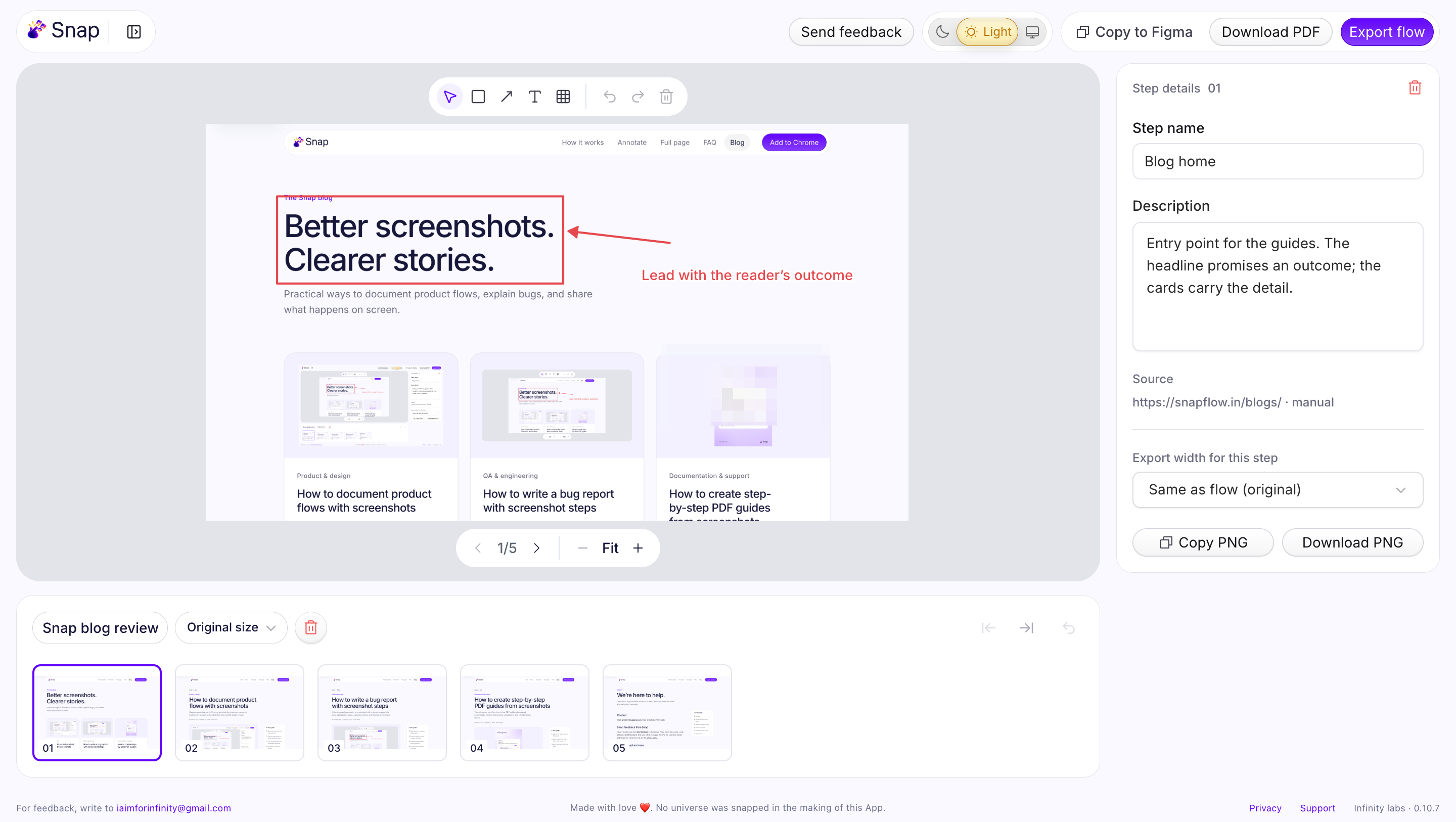
- Click Finish to open the editor. Give every step a clear title and a one-line description.
- Annotate and redact. Point at the button to press, and pixelate anything private before you export.
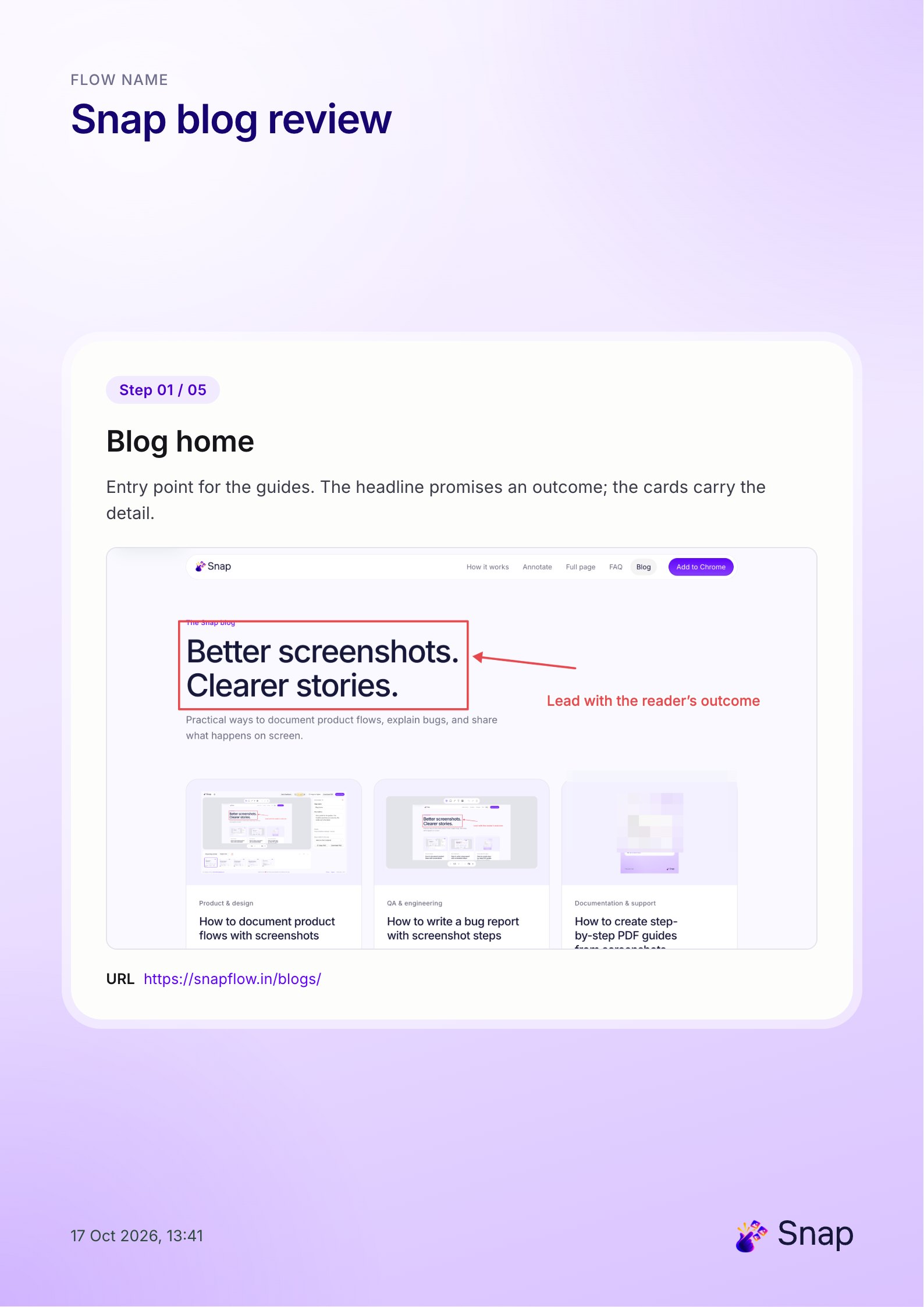
- Export a PDF for a document, a ZIP for a ticket or wiki, or copy the flow into Figma for a design review.
Switching from Scribe: what to expect
- There is no import. Snap cannot open existing Scribe guides. Re-capture the guides you still use, starting with the most visited.
- Plan for writing time. Short titles and one-sentence descriptions are usually enough, and they read better than text generated from every click.
- Decide where guides will live. Snap shares files, so pick a home for them: a shared drive, your wiki, your help desk or a Figma file.
- Keep a backup. Flows stay in your Chrome profile until you delete them. Export anything important before you uninstall the extension or clear browser data.
If you are writing longer documentation, our guide to step-by-step PDF guides covers structure and wording.
Frequently asked questions
Is there a free alternative to Scribe?
Yes. Snap is a free Chrome extension for screenshot guides. It has no account and no paid tier, and it exports to PDF, ZIP, PNG and Figma. It does not write step text for you, which is Scribe’s main strength.
Can I use Snap without creating an account?
Yes. Install it from the Chrome Web Store and start capturing. Snap has no sign-up, login or cloud workspace.
Where does Snap store my screenshots?
In your Chrome profile on your device, with screenshot content encrypted. Nothing is uploaded. Sharing happens through the files you export.
Does Snap write the instructions automatically?
No. Snap captures the screens you choose. You add a title and description for each step in the editor.
Can Snap capture desktop apps?
No. Snap captures web pages in Chrome on desktop. For desktop or mobile apps, use a tool that supports them.
Can I export a guide to PDF for free?
Yes. Snap exports a flow to PDF, one step per page, at no cost. You can also export a ZIP of numbered PNGs or copy the flow into Figma.
Try a guide without signing up
Install Snap, capture the next process you need to explain and export it as a PDF in a few minutes.
Add to Chrome, it’s free